

Before you start
- Applies to
- MapTrack web app
- Access
- Admin; Reports are Admin-only.
- Connection
- Internet connection required to load the report, inspect contributing records and export data.
- Time
- 5 to 10 minutes for one equipment group
You'll need
- Assets with relevant assignment or request history
- A defined reporting period and equipment group
- A clear question, such as which assets were allocated or requested during that period
Steps
Open Asset Performance and set the date range
Open Reports > Asset Performance. Choose the reporting date range first. A shorter range helps you inspect a handover or recent allocation; use the same range when comparing asset groups.
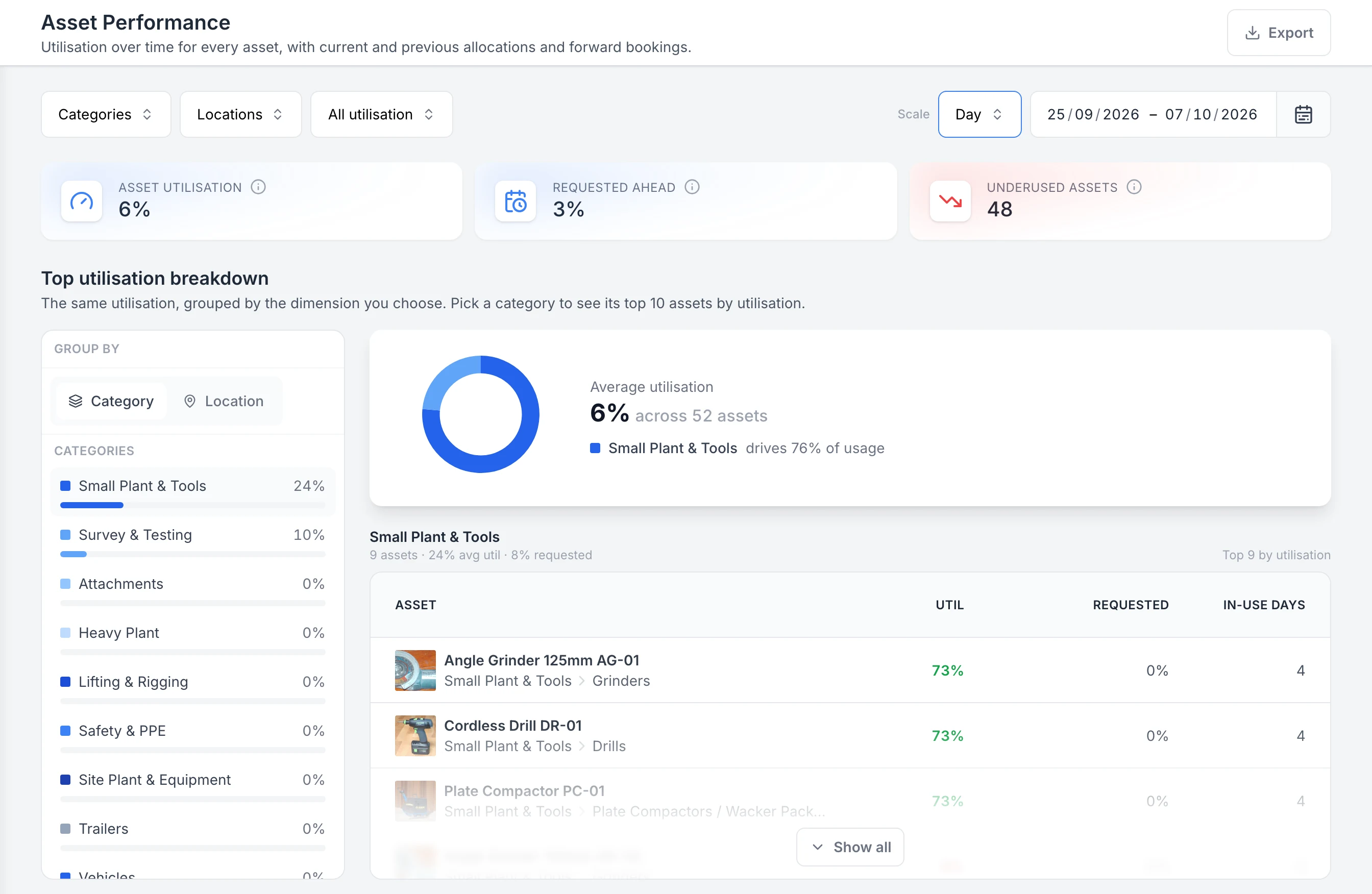
Compare recorded equipment use over a chosen period
Set the date range before comparing the summary and category breakdown. Recorded allocations drive utilisation; future requests appear separately. The selected group contains nine assets in this example.
MapTrack app · Demonstration data · Captured
About this screenshot
Demonstration assignments and requests, viewed on 30 September. These percentages describe recorded allocations, not measured engine hours or productive work.
Choose the scale and asset filters
Choose Day, Week, Month or Year under Scale. A wide date range can disable a finer scale, so shorten the range if you need daily or weekly detail. Apply Categories, Locations or the utilisation-band filter.
- High: 80% or above.
- Healthy: 40% to below 80%.
- Low: 1% to below 40%.
- Idle: 0%.
Read the three headline figures
Read each figure against the selected range and assets.
- Asset utilisation: the average share of historical time that the included assets were allocated through assignments.
- Requested ahead: the average share of the forward period covered by included asset-specific requests.
- Underused assets: the number below 40% allocation utilisation.
Explore the category or location breakdown
In Top utilisation breakdown, choose Category or Location and select a group. Review its average allocation utilisation and the asset shortlist beneath it. The Location filter and this breakdown use each asset’s current recorded location; they don’t establish where every historical hour was spent.
Open a heatmap cell
Under Utilisation by asset, choose Location or Category grouping, then select a cell for the asset and period you need. Read the In use or Requested entries and follow the linked assignment or request to check its context.
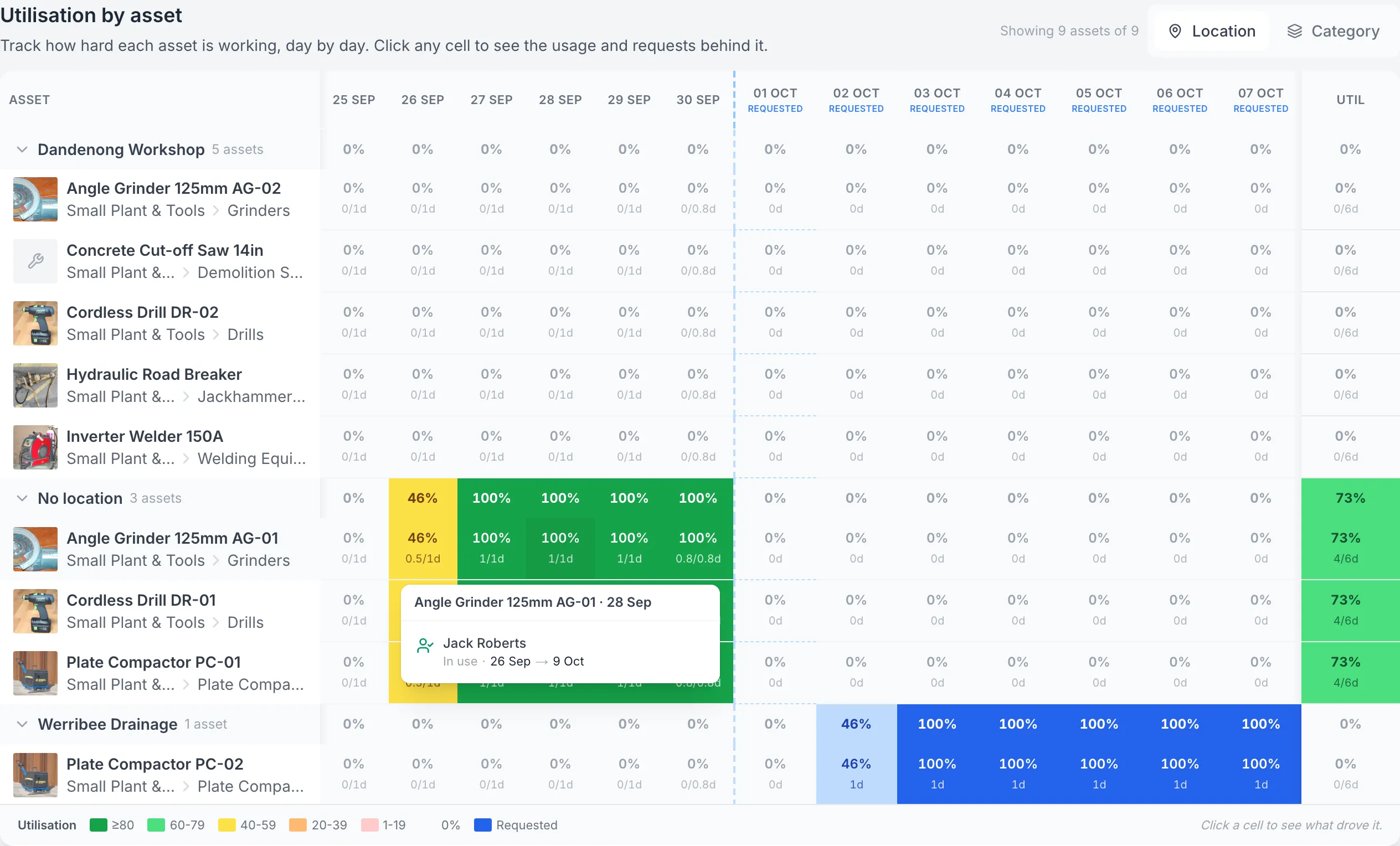
Open the allocation behind a coloured cell
Opening the grinder’s 28 September cell reveals the recorded allocation and its dates. Green allocation time and blue requested time answer different questions; neither proves that the equipment was running.
MapTrack app · Demonstration data · Captured
About this screenshot
Demonstration Small Plant & Tools filter, 25 September to 7 October 2026. Location groups use each asset’s current saved location. The No location group does not mean the equipment has no physical whereabouts.
Good to know: Historical cells show allocation time. Forward Requested cells show requests. A long period can round a small amount of use to 0%; shorten the range and inspect the contributing records.
Export the selected report
Choose Export and select CSV or Excel. Keep the current filters selected if you want the same asset group. Open the downloaded file and check the dates and included assets. Keep that context with the file when sharing it.
Follow up on the equipment record
For an unexpected gap or high figure, review the source assignments and returns. If you need machine hours, check the asset’s configured meter readings. Use the relevant MapTrack Telematics report for tracked movement or time within a geofence.
What you should see
You can explain the allocation and request figures for the selected assets and dates, inspect their source records and retain the selected report as a spreadsheet or CSV.
Current limits
- Allocation time measures how long equipment was checked out. It doesn’t measure engine runtime, productive output or GPS time on site.
- An empty period or rounded 0% can reflect missing history, a long date range or filters. Check the underlying records before deciding that equipment wasn’t used.
- The Location filter and Top utilisation breakdown group assets by current location. Use the source records when investigating earlier handovers or sites.
- The top-10 shortlist is drawn from the first 50 assets loaded for its group. Use the filtered export when comparing a larger group.
- Requested ahead uses requests for specific assets. A category-quantity request without selected assets doesn’t contribute to this figure.
- Asset Performance exports CSV or Excel. A completed form PDF and a MapTrack Telematics PDF report are separate workflows.
Troubleshooting
| What you see | Likely cause | What to do |
|---|---|---|
| What you seeThe report is empty | Likely causeThe date range or filters may exclude the assets or history you need. | What to doClear the filters, review the dates and open a known assignment. If the account has no assets, add the relevant equipment before using this report. |
| What you seeDay or Week is unavailable | Likely causeThe selected range would create too many columns at that scale. | What to doShorten the date range first, then choose the finer scale. The report adjusts the scale to keep the heatmap readable. |
| What you seeAn asset shows 0% despite a recent assignment | Likely causeA small amount of use may round down over a long period, or the relevant assignment may fall outside the selected range. | What to doChoose a shorter range around the assignment and open the matching heatmap cell. Check the source assignment’s dates and return record. |
| What you seeThe report and an engine-hour figure disagree | Likely causeThey measure different activity. | What to doCompare the periods and definitions. Time allocated to a person or site can include time when the engine wasn’t running. |
| What you seeA location group doesn’t match an earlier site | Likely causeThe breakdown uses the asset’s current recorded location. | What to doOpen the historical assignment and check its destination. Use that record to explain the earlier handover. |
Common questions
Still stuck?
Tell us the step you reached, what you expected and the exact message on screen. Remove customer, asset and personal details before sharing a screenshot.