

Before you start
- Applies to
- MapTrack web app
- Access
- Admin to add, edit or link devices and configure automated readings. Field Users can view the device list; Viewer / Scanner and Form Submitter roles have device-detail access.
- Connection
- Use an internet connection for device setup, current device reports and automated-reading configuration.
- Time
- 5 to 10 minutes for setup, plus time for the tracker to report
You'll need
- The tracker’s correct provider, model and Device ID
- Confirmation that the tracker is connected to MapTrack’s tracking service
- An existing asset to link it to
- For automated readings, a compatible asset meter and a known starting reading
Steps
Open Devices
Open Settings > Devices. Choose Add device to open New Device. You’ll need the Admin role to see the add and management controls.
Enter the tracker details
Choose the Provider and Device type. For Digital Matter, enter the numeric Device ID from the tracker’s records, then add a Name that helps your team recognise it. Check the model and ID before choosing Save device.
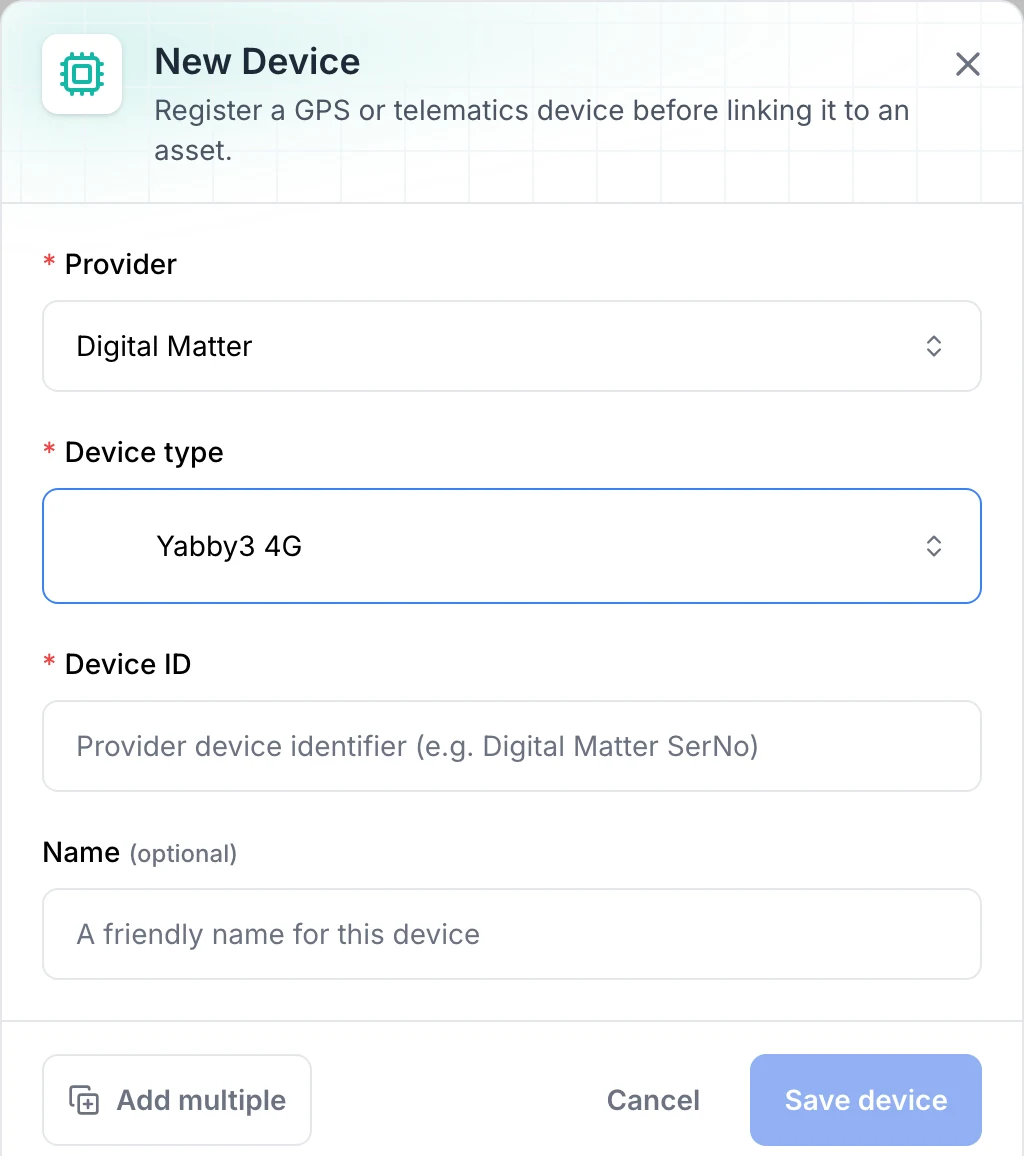
Start with the device provider and model
Choose the provider and device type, then enter the identifier supplied with your tracker. Registration is followed by linking the device to an asset.
MapTrack app · Demonstration data · Captured
About this screenshot
Unsaved setup form. No tracker was registered for this example, and this image does not show received GPS data.
Good to know: Add multiple opens bulk registration. If your provider or model isn’t listed, Other lets you send the team your device details; it doesn’t register an unsupported model.
Check for the first device report
The saved device opens on its detail page. Allow the first fetch to finish, then check the available location and health details. If No reports found appears, check the ID and that the tracker is powered on and connected. Use Fetch data or Try again when offered.
Link the tracker to the correct asset
On the device, choose Link to asset. Select the equipment it’s fitted to and choose Link asset. Open that asset’s Telemetry tab to review its linked device information.
Set up an asset meter if you need it
On the device page, choose Set up automated readings. Select a compatible meter and the available device measure: estimated run hours for an hours meter, or estimated odometer distance for a kilometre meter. Review the reading frequency before saving.
Good to know: An active starting meter reading is required, including an explicitly recorded zero. If the connection saves as Paused, use Record first reading. Saving that first reading enables the connection; cancelling leaves it paused.
Check timestamps and keep readings in context
Compare Last reported with Location recorded. The tracker may have sent a report without a newer GPS position. In Automated readings, check whether the connection is Enabled, Paused or Unavailable. Its menu lets you Record reading, Enable a paused connection, Edit it or Remove it.
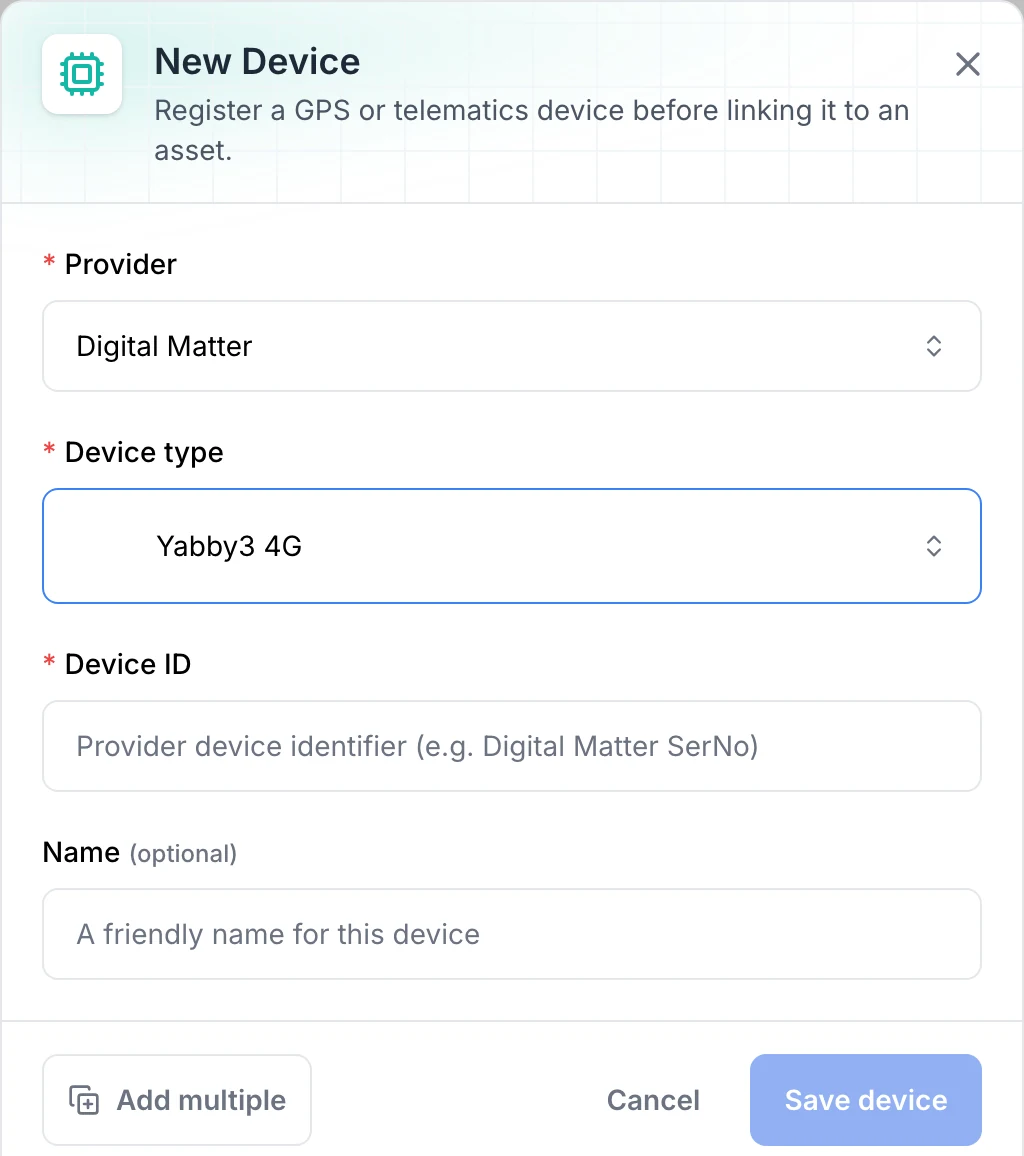
What you should see
The tracker is registered against the intended asset. You can check when its available data was recorded and, where supported, see the status of its automated asset-meter readings.
Current limits
- Saving a device registers its details. Confirm that a usable report has arrived before relying on its location or automated readings.
- Available measures depend on the device model and the data it reports. Choosing Other is a support request.
- Automated run hours and distance are estimates from device activity and GPS data. Keep the asset’s starting reading accurate; raw device totals aren’t a lifetime odometer for the asset.
- Recorded position and reporting timestamps describe the available snapshot. Live GPS, geofences and trip history are available through MapTrack Telematics.
- Changing the linked asset disables the device’s automated-reading connections. Review the new asset and its starting readings before enabling them again.
Troubleshooting
| What you see | Likely cause | What to do |
|---|---|---|
| What you seeAdd device or management actions are missing | Likely causeYour account role may allow viewing without device management. | What to doAsk an Admin to register or link the tracker. Field Users can read the device list; Viewer / Scanner and Form Submitter roles have detail access. |
| What you seeThe device is saved but has no location | Likely causeIts first fetch may still be running, the ID may be incorrect, or the tracker hasn’t supplied a usable position. | What to doCheck the device message, ID, power and connection. Use Fetch data or Try again when available. Contact support if reports still don’t arrive. |
| What you seeAutomated readings are paused | Likely causeThe asset meter may not have a starting reading, or the device was linked to a different asset. | What to doConfirm the linked asset and meter. Record the correct current value, then choose Enable from the meter’s menu if it remains paused. |
| What you seeAutomated readings show Unavailable | Likely causeThe selected and reported device types may differ, or that model may not support the selected measure. | What to doReview the device-type message and correct the model to match the hardware before checking the connection again. |
Common questions
Still stuck?
Tell us the step you reached, what you expected and the exact message on screen. Remove customer, asset and personal details before sharing a screenshot.