

Before you start
- Applies to
- MapTrack web app
- Access
- Permission to create Requests; approval and fulfilment also depend on your role and relationship to the request
- Connection
- Internet connection required for creation, approval, fulfilment and the resulting assignment
- Time
- Allow time to check availability and the actual handover
You'll need
- An existing destination person or location and a valid requested period
- Assets and categories set up in the register
- Your account approval requirements and assignment rules
Steps
Set the destination and dates
Open Requests, select New request and choose a person, a location or both. Set Needed from and, where used, Needed until. The form applies your account’s recipient and due-back rules. Use a future start date for a new scheduled request.
Choose specific items or category quantities
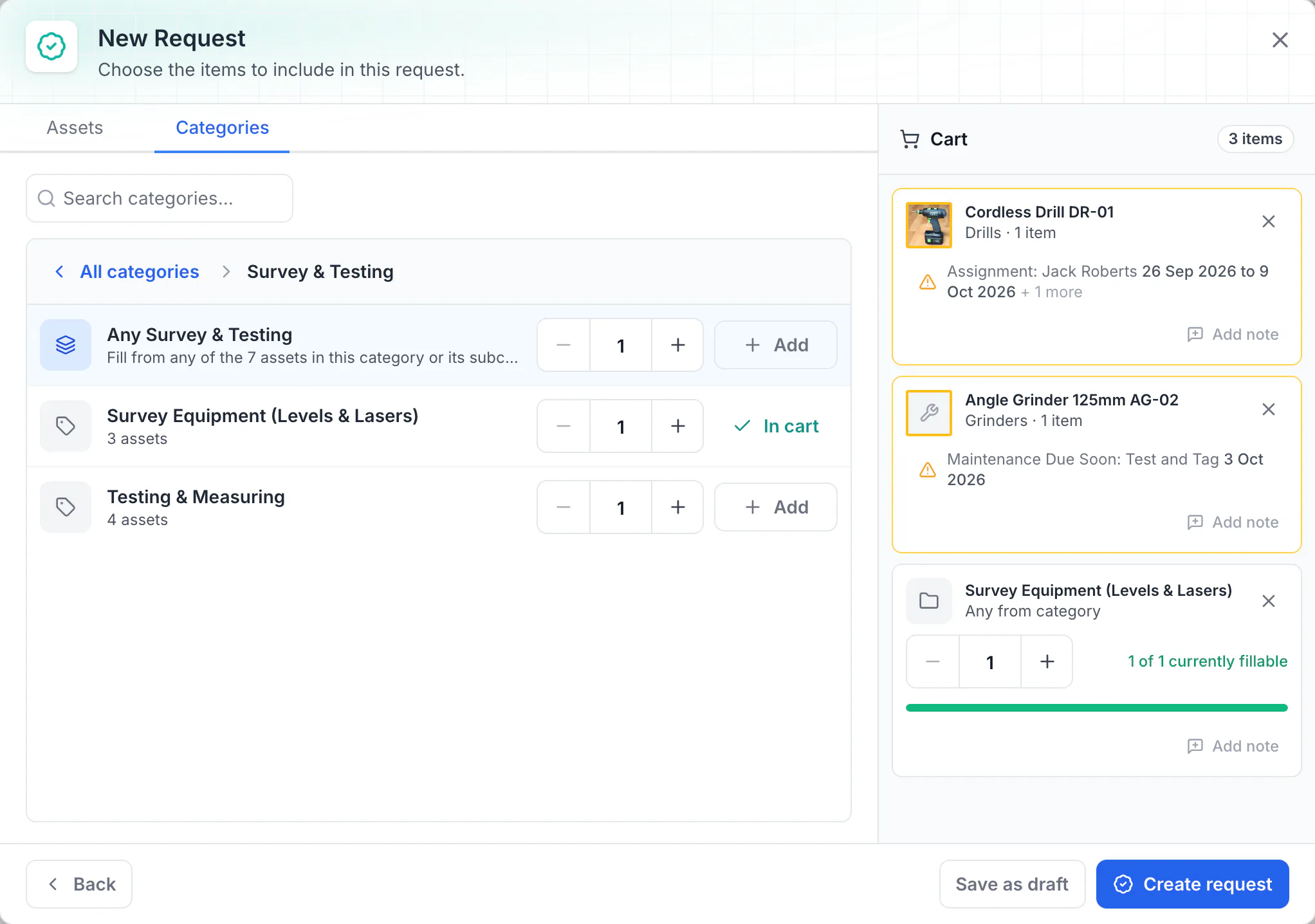
Continue to the item picker. Use Assets for a named item and Categories when stores can choose the actual gear later. A parent category can include assets in its subcategories. Check the selected quantities, then choose Create request or Save as draft.
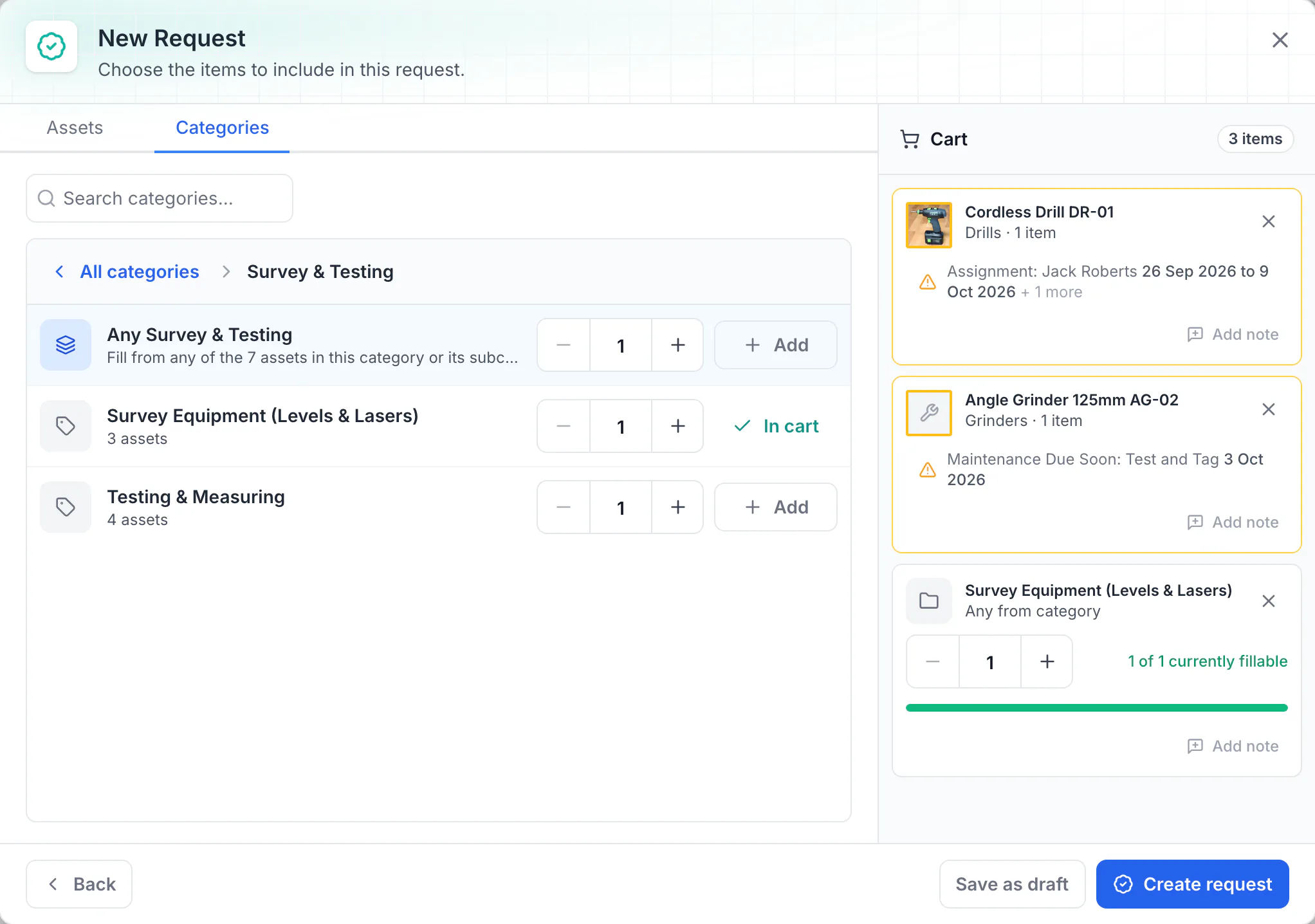
Ask for a named item or any item from a category
The picker drills down from All categories to Survey & Testing, so stores can fill a line with any suitable instrument later. Before the request is created, the cart flags the requested drill’s existing assignment and the grinder’s test and tag date.
MapTrack app · Demonstration data · Captured
About this screenshot
Captured while creating a request in a demonstration workspace. Warnings describe availability; adding an item to a request does not mean it can be issued.
Good to know: A planning conflict is information about demand and availability. Adding an item to a request does not mean it can be issued.
Follow the account approval route
If approval is enabled, check the selected approver and Pending status. An authorised approver can approve with notes or reject with a reason. With approval disabled, a submitted request goes directly to Scheduled.
Good to know: A saved default approver does not turn approval on. Confirm the account setting before relying on an approval step.
Fulfil and record substitutions
Use Fulfil or the request’s Scan workflow to select the equipment you are actually issuing. Each selected asset fills one category slot. For a named asset that needs replacing, choose Substitute, compare the replacement, then confirm its reason and optional note.
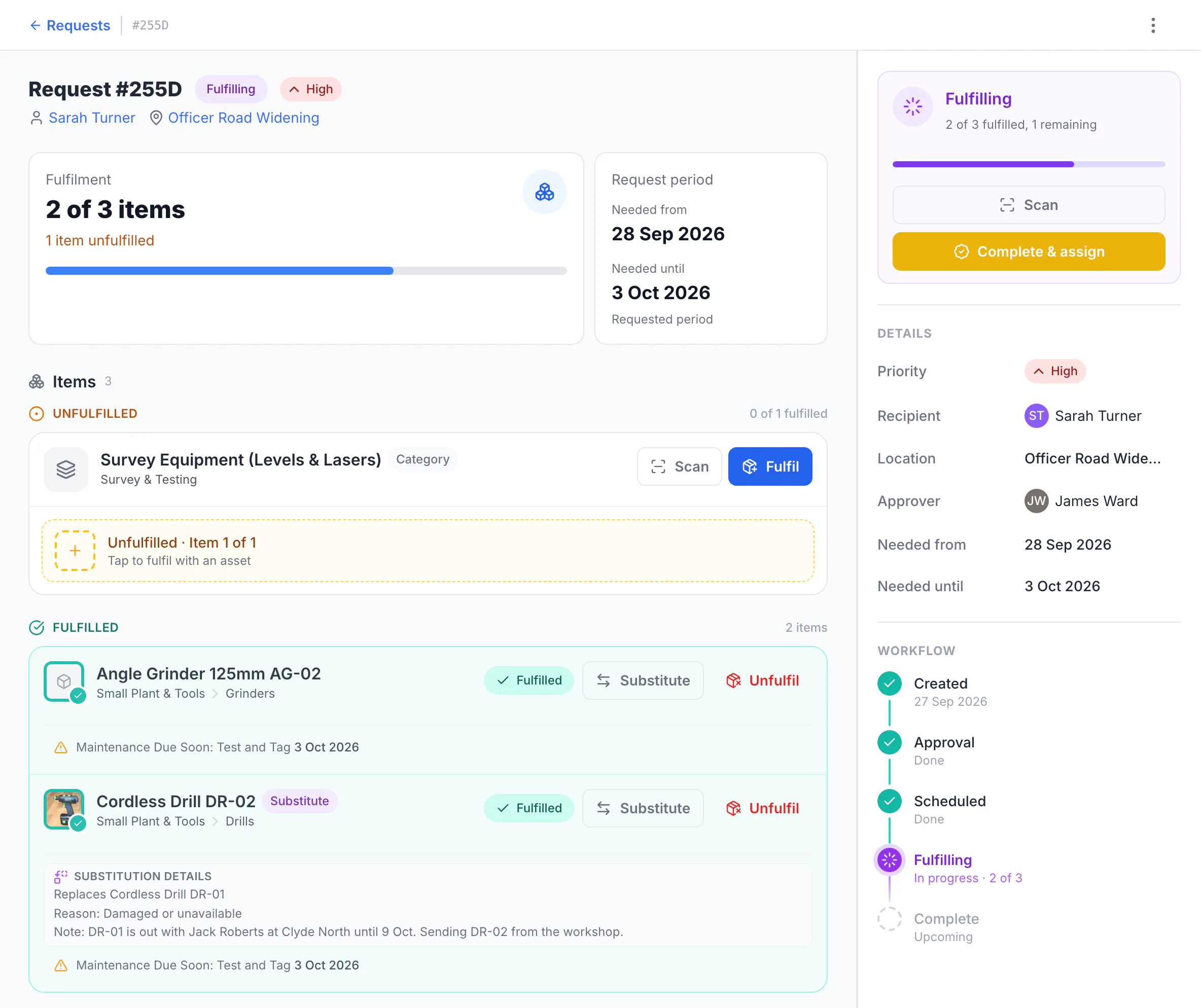
See what was picked and what is still outstanding
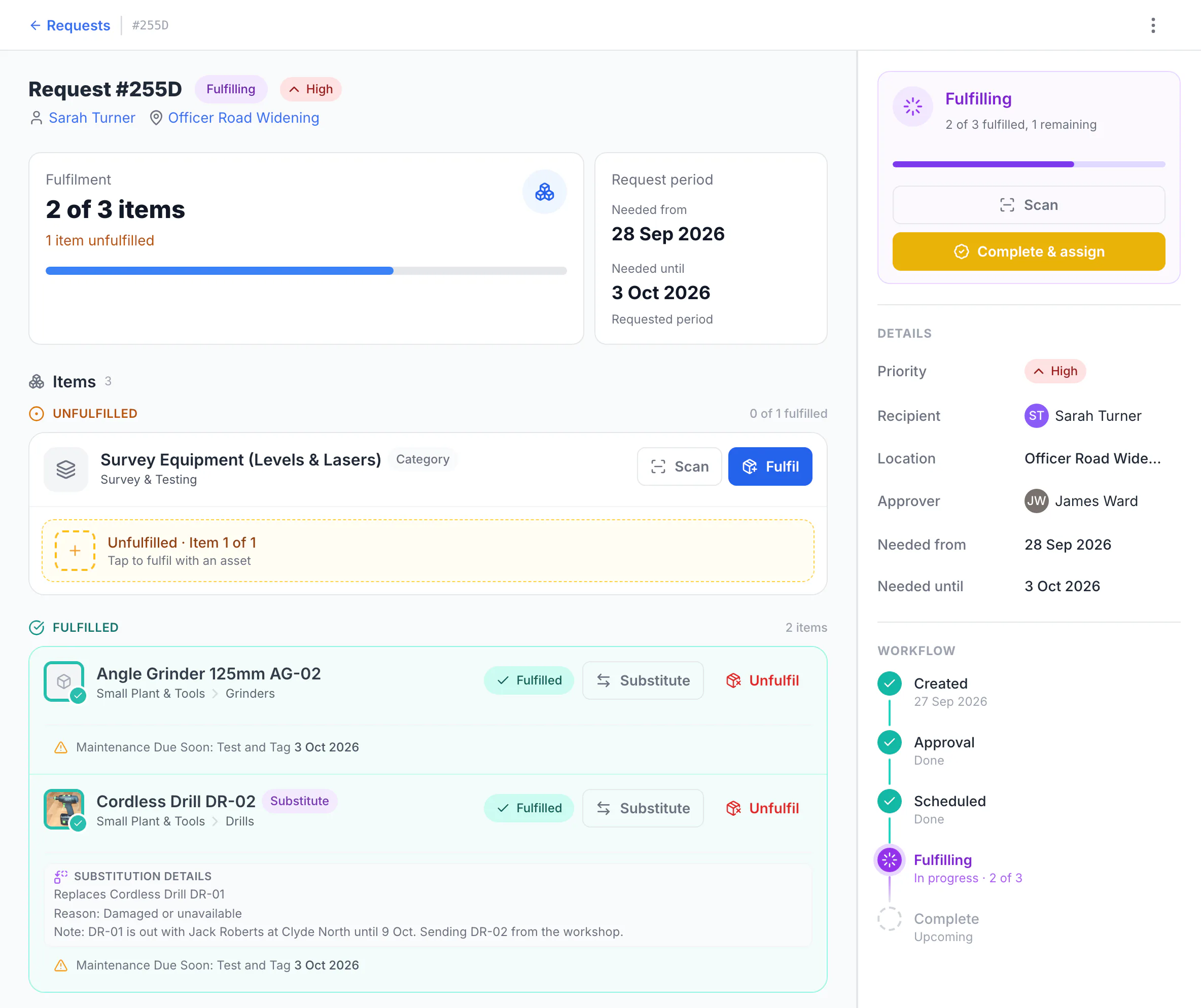
The request is for an angle grinder, drill DR-01 and one survey instrument, with Sarah Turner as recipient at Officer Road Widening and James Ward as approver. DR-01 was already out with another crew member, so stores sent DR-02 and recorded why. Two of three items are fulfilled and the survey instrument is still outstanding.
MapTrack app · Demonstration data · Captured
About this screenshot
Demonstration workspace with request approval switched on. The request was created, approved and part-fulfilled; the assignment has not been completed yet.
Complete the connected assignment
Choose Complete & assign. If items are still missing, read and confirm the shortage before continuing. Check the resulting assignment’s destination, due-back date, custom fields and any required location. Confirm the quantities of required accessories and complete any required forms before saving.
Good to know: Opening the assignment form is not a completed checkout. Check that the request shows Complete and that View assignment opens the saved handover.
Keep the remainder and return traceable
Check the fulfilled and unfulfilled totals on the completed request. If the missing gear is still needed, use the follow-on request flow and check its saved demand. Use the linked assignment when equipment comes back, reconciling returned assets and accessories against the quantities issued.
What you should see
The request retains its requested items, actual fulfilment, substitutions and shortage. A completed handover has a linked assignment for the assets actually issued.
Current limits
- Requests, checkout and returns need a connection; these actions are separate from recording a loaded work order’s results offline.
- Availability can change between planning and issue. Assignment creation is the final check for the actual assets.
- Optional approval and ad-hoc accessory entry depend on account settings.
Troubleshooting
| What you see | Likely cause | What to do |
|---|---|---|
| What you seeA new request is Scheduled without approval | Likely causeApproval is disabled in the account | What to doHave an authorised administrator check the approval setting and default approver before creating the next request. |
| What you seeThe replacement picker shows no equipment | Likely causeIts category or location filters may exclude a suitable item | What to doReview the filters and the replacement’s suitability and availability. Keep a clear reason for the substitution. |
| What you seeThe request is still Fulfilling | Likely causeThe resulting assignment may not have been saved | What to doReopen the request and check for View assignment before repeating the handover. Do not issue the same items twice. |
Common questions
Still stuck?
Tell us the step you reached, what you expected and the exact message on screen. Remove customer, asset and personal details before sharing a screenshot.