

Before you start
- Applies to
- MapTrack web app
- Access
- Admin or Field User. Viewer / Scanner and Form Submitter roles don’t have access to the Map asset-list view.
- Connection
- Internet connection required for map tiles, asset searches and recorded position data.
- Time
- 2 to 5 minutes
You'll need
- Access to the workspace’s asset list
- For a position on the map, a recorded GPS fix or coordinates captured for a current deployed assignment
Steps
Open Map
Choose Map in the navigation. Allow the asset list and map to finish loading. Zoom in or out to view the area you need.
Find the asset you need
Choose Search assets and enter the asset’s name, then choose All, Available, Deployed or Missing to narrow the list. Open Toggle filters for additional filters. Apply the filters you need, or reset them when they exclude the asset you’re looking for.
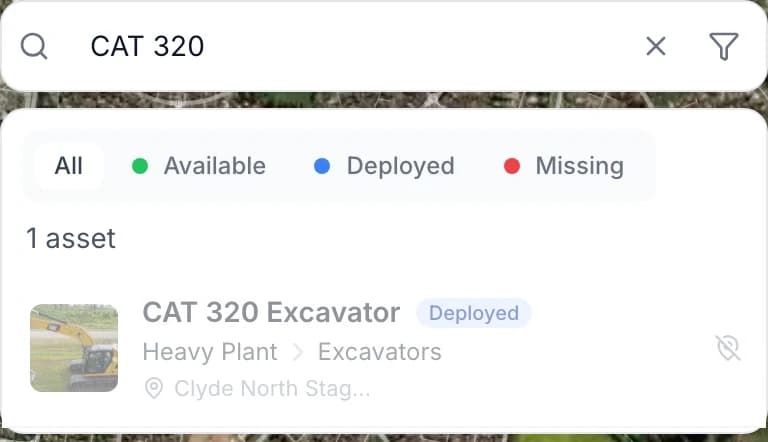
Find an asset from the map
Search for equipment by name and use the status tabs to narrow the list. Selecting a result opens the asset record; a search result on its own doesn’t confirm a recorded position.
MapTrack app · Demonstration data · Captured
About this screenshot
Demonstration asset search. This crop shows the search controls and result, without a GPS position or device report.
Good to know: A status tab filters asset records. Missing is an asset status, not a list of trackers that have stopped reporting.
Choose a map view
Use Switch to Map View to leave satellite imagery, or Switch to Satellite View to show it again. Your choice is remembered in that browser. A browser without a saved map-style choice starts in satellite view.
Good to know: The standard map view follows your light or dark appearance setting.
Open the asset and check its position
Choose an asset from the search results to open its details. Where recorded coordinates are available, you can also choose its map marker. For a linked tracker, check Location recorded and Last reported in its device details before relying on the position.
Good to know: A recent device report can still contain an older GPS position. A recorded checkout position describes where that assignment was captured, not where the asset has moved since.
Check records when no position is shown
Clear the search and filters, choose All and allow the list to load. Open the asset in Assets to review its assignments and any linked device. Check the available location records before arranging a collection.
Good to know: No assets with location data or an empty search result doesn’t establish that the workspace has no assets. Some records may have no usable coordinates, or your current filters may exclude them.
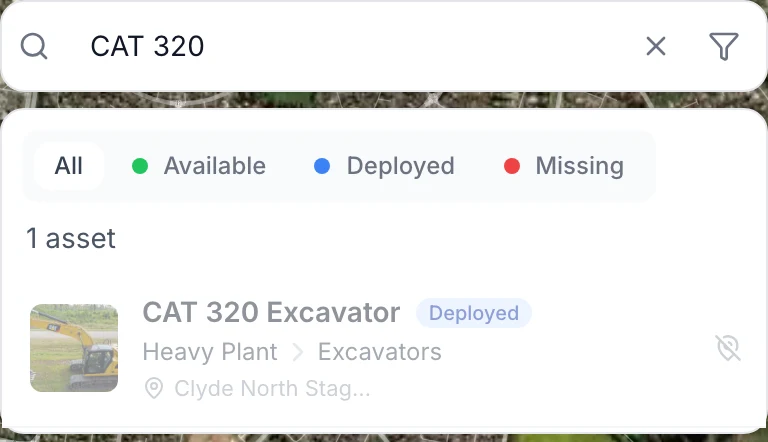
What you should see
You can find the asset record, choose a map view and judge whether its available recorded position is useful for the job.
Current limits
- The map shows saved positions. It doesn’t establish an asset’s live position or that it’s still at a recorded checkout point.
- A usable fix from a linked registered device takes priority. Without one, the map can use captured checkout coordinates from a current deployed assignment. Assets without either source don’t have a position marker.
- An asset’s assigned location name and its recorded coordinates are different pieces of information. Confirm the record before treating them as the same place.
- A plain QR scan doesn’t record a new location.
- Live GPS, geofences and trip history are available through MapTrack Telematics. This guide covers the app’s recorded-position map.
Troubleshooting
| What you see | Likely cause | What to do |
|---|---|---|
| What you seeMap is missing from the navigation | Likely causeYour role may allow individual asset access without access to the asset-list map. | What to doAsk an Admin to check your role. Admins and Field Users can use Map. |
| What you seeNo assets match your search | Likely causeYour search, status tab or advanced filters may exclude the records. | What to doClear the search, choose All and reset additional filters. Allow the list to finish loading, then check the asset in Assets. |
| What you seeAn asset has no map position | Likely causeIt may have no usable registered-device fix or captured coordinates for a current deployed assignment. | What to doOpen the asset and check its assignments and linked device. A named location alone doesn’t provide a new GPS fix. |
| What you seeThe GPS position looks old | Likely causeThe device may have reported without capturing a newer position. | What to doCompare Location recorded with Last reported in device details. Check the tracker’s reporting state before using the point for collection. |
Common questions
Still stuck?
Tell us the step you reached, what you expected and the exact message on screen. Remove customer, asset and personal details before sharing a screenshot.