

Before you start
- Applies to
- Web app
- Access
- Admin or Field User to open the asset list
- Connection
- Synced assets can be searched and filtered offline; saving or sharing a view and exporting require an internet connection
- Time
- About 3 minutes for a useful saved view
You'll need
- Assets already added to the current workspace
- A clear question to answer, such as what is missing, at a site or assigned to a person
Steps
Open the asset list
Open Assets. Start from All assets so an older saved view does not hide records you need for this search.
Search for a known detail
Use Search assets... for an asset name or ID. Search can also match indexed details such as a tag, category, location, person or custom-field value.
Good to know: Search works best for a known value. Use filters when you need a repeatable rule or several conditions together.
Apply the quick filters
Narrow the list with the quick filters beside search, such as Status, Categories, People or Locations. Choose quick filters to pick and order the ones you use, including dropdown custom fields. You can combine them to answer a question such as which available assets are at a particular depot.
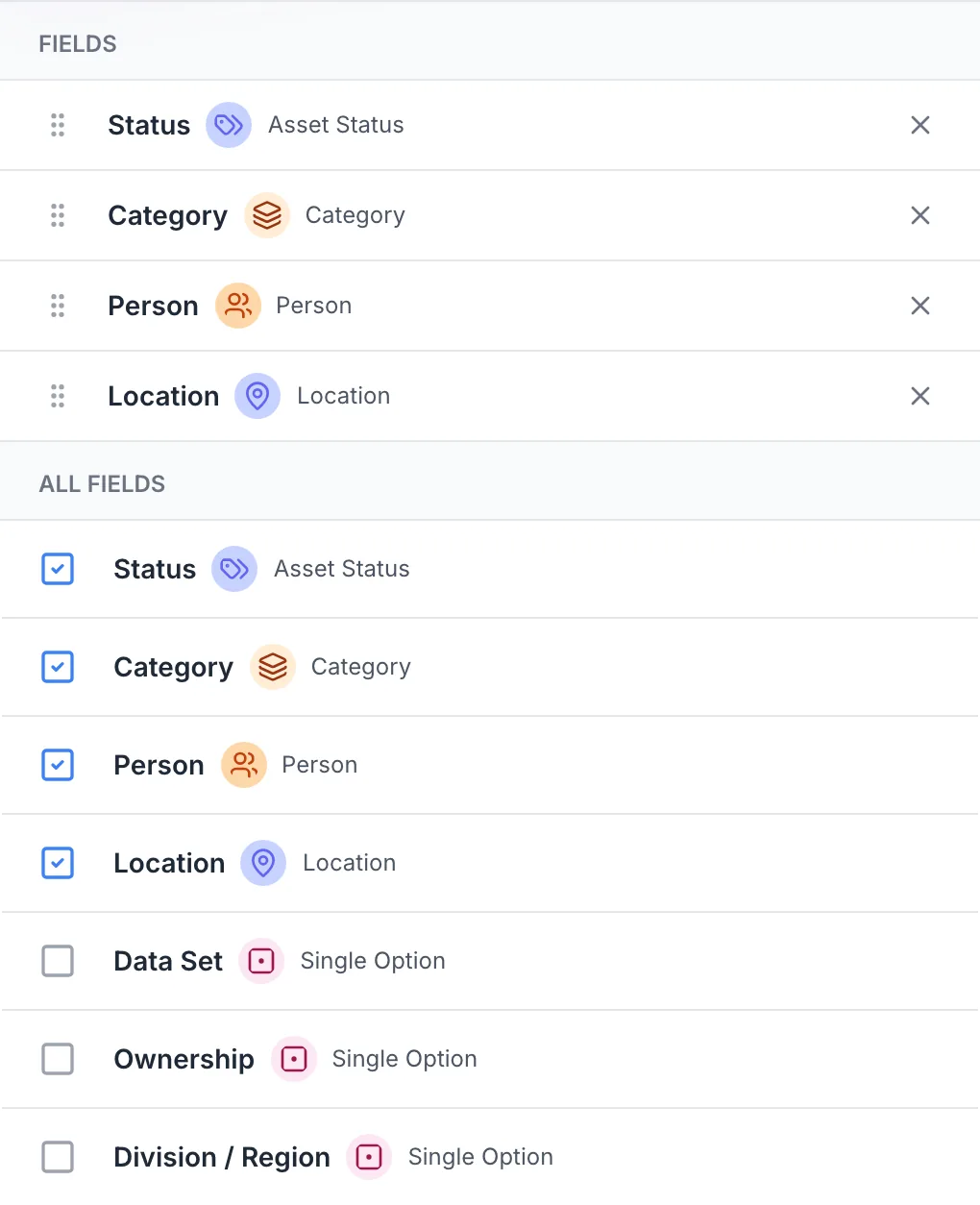
Choose the quick filters above the asset list.
The chooser lists the current quick filters and available dropdown custom fields.
MapTrack app · Demonstration data · Captured
About this screenshot
Open Assets, then Display settings and Choose quick filters in the demonstration workspace. The chooser shows the selected filters and available dropdown custom fields. Cancel without saving.
Build a custom filter
Choose Filter, then Advanced filters, for more control. Add conditions for system fields or active custom fields, then use AND when every condition must match or OR when any condition can match.
Choose the most useful layout
Switch between Table, List, Grid, Timeline or Calendar. Use Table when you need to compare fields across many assets, and choose the layout that best suits the task for the others.
Save the view
Choose Save as view, give the filter set a clear task-based name and save it. A private view is available only to you. Admins who created a view can change its sharing when the same filters should be available to the team or selected people and roles.
Choose the table columns
From the asset-list menu, choose Choose table columns. Turn columns on or off, put them in a useful order and save. Admins can also publish an account default for people who do not already have a personal column layout.
Check the view before relying on it
Open All views, select the view and check a few known assets. For a different filter set, start from All assets, apply the new filters and choose Save as view.
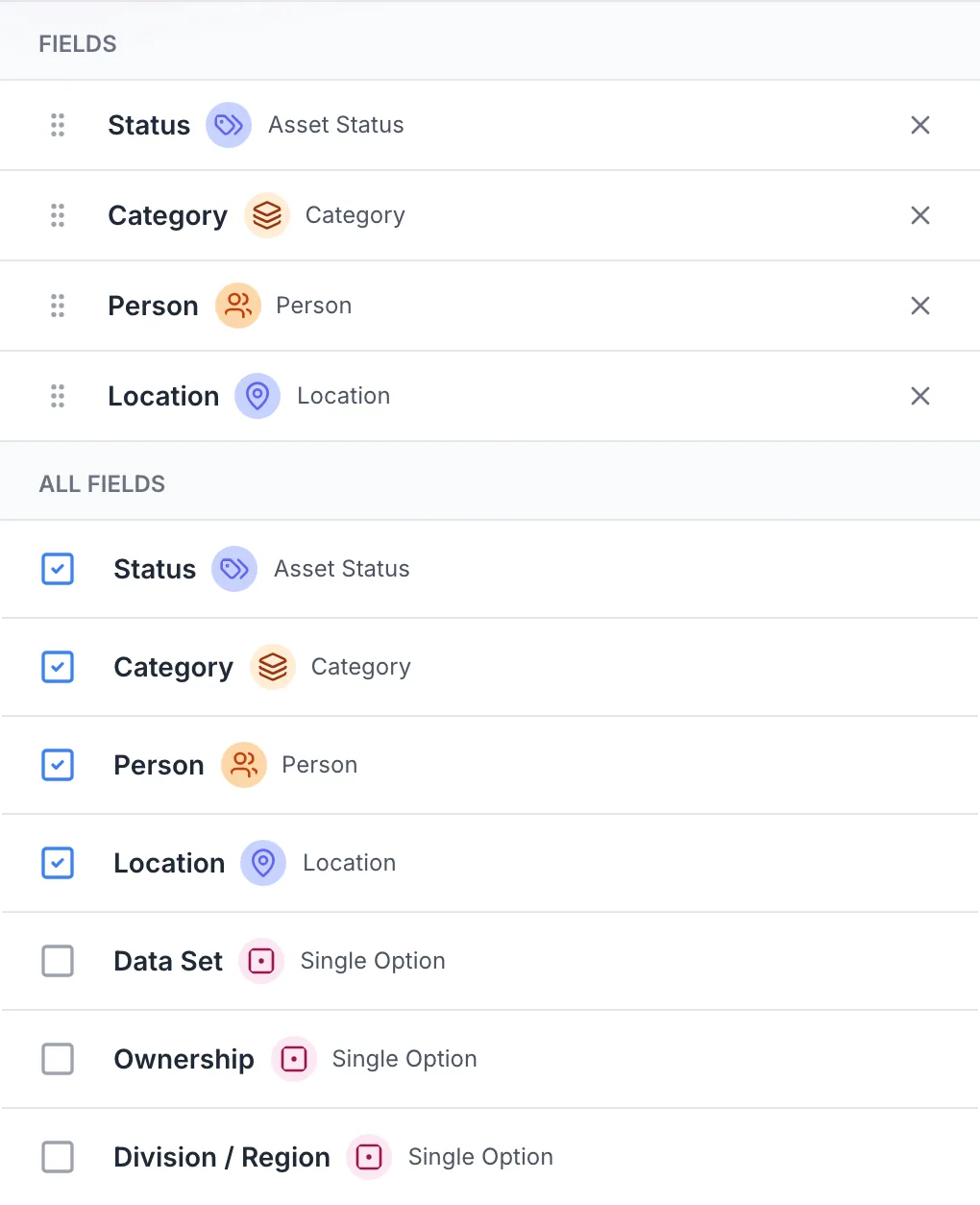
What you should see
The saved view reapplies the intended asset filters. Your table columns and chosen layout remain separate preferences, and no underlying asset record is changed.
Current limits
- Viewer / Scanner and Form Submitter roles have asset-detail access only and cannot open the full asset list.
- Creating, updating or sharing a saved view and exporting asset data require an internet connection.
- A saved view stores its filters, not the free-text search, sort order, page, table columns or Table, List, Grid, Timeline or Calendar layout.
- A personal column layout takes priority over an account default until that person resets their columns.
- Sharing a saved view does not change the recipient’s permission to read or update its underlying records.
Troubleshooting
| What you see | Likely cause | What to do |
|---|---|---|
| What you seeSave as view is unavailable or the change will not save | Likely causeThe device is offline, or the current role does not have access to the asset list. | What to doReconnect and retry from Assets. If the list itself is unavailable, ask an Admin to check the current role. |
| What you seeAnother person cannot see the saved view | Likely causeThe view is private, or its custom sharing does not include that person or role. | What to doAsk the person who created the view to review its sharing. If they created it as an Admin, they can choose the right team or custom sharing option. Keep it private if the filters are only useful to them. |
| What you seeThe team still sees different table columns | Likely causeOne or more people already have a personal layout, which takes priority over the account default. | What to doHave those people open Choose table columns and reset their layout if they want to use the account default. |
Common questions
Still stuck?
Tell us the step you reached, what you expected and the exact message on screen. Remove customer, asset and personal details before sharing a screenshot.