

Before you start
- Applies to
- MapTrack web app
- Access
- Admin; Reports are Admin-only.
- Connection
- Internet connection required to load asset fields and generate the report.
- Time
- 5 to 10 minutes once purchase fields are populated
You'll need
- Active assets with recorded purchase dates and purchase prices
- An asset date or date/time custom field for purchase date and a money field for purchase price
- The method, useful life, residual value and currency you want to use
Steps
Open Asset Depreciation
Open Reports > Asset Depreciation. If the report isn’t configured, Depreciation Report Configuration opens automatically. Otherwise, choose Edit configuration.
Map the purchase fields
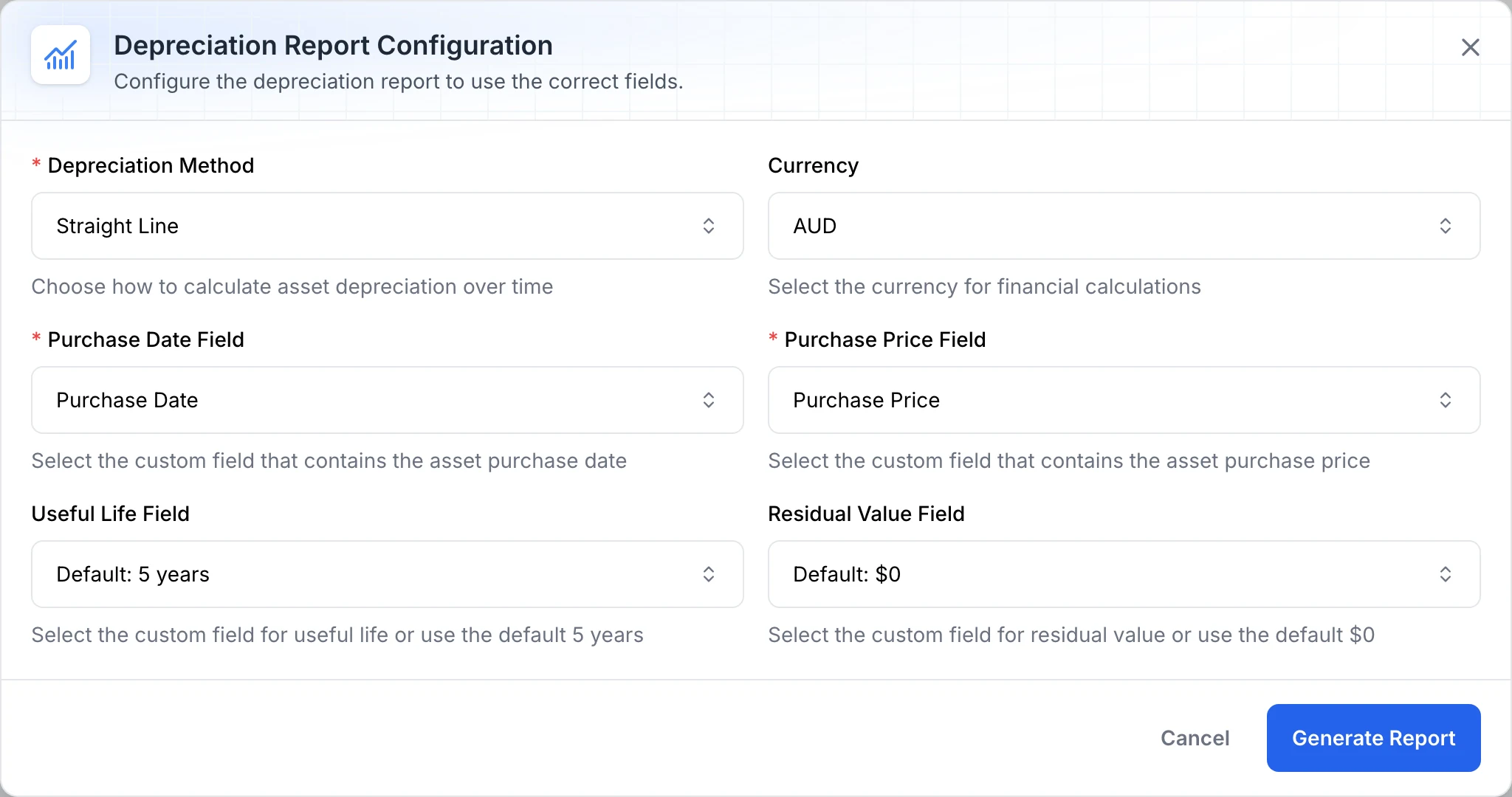
For Purchase Date Field, choose the field containing each asset’s purchase date. For Purchase Price Field, choose its purchase-price money field. MapTrack may suggest fields from their names; check that they’re the fields your team actually uses.
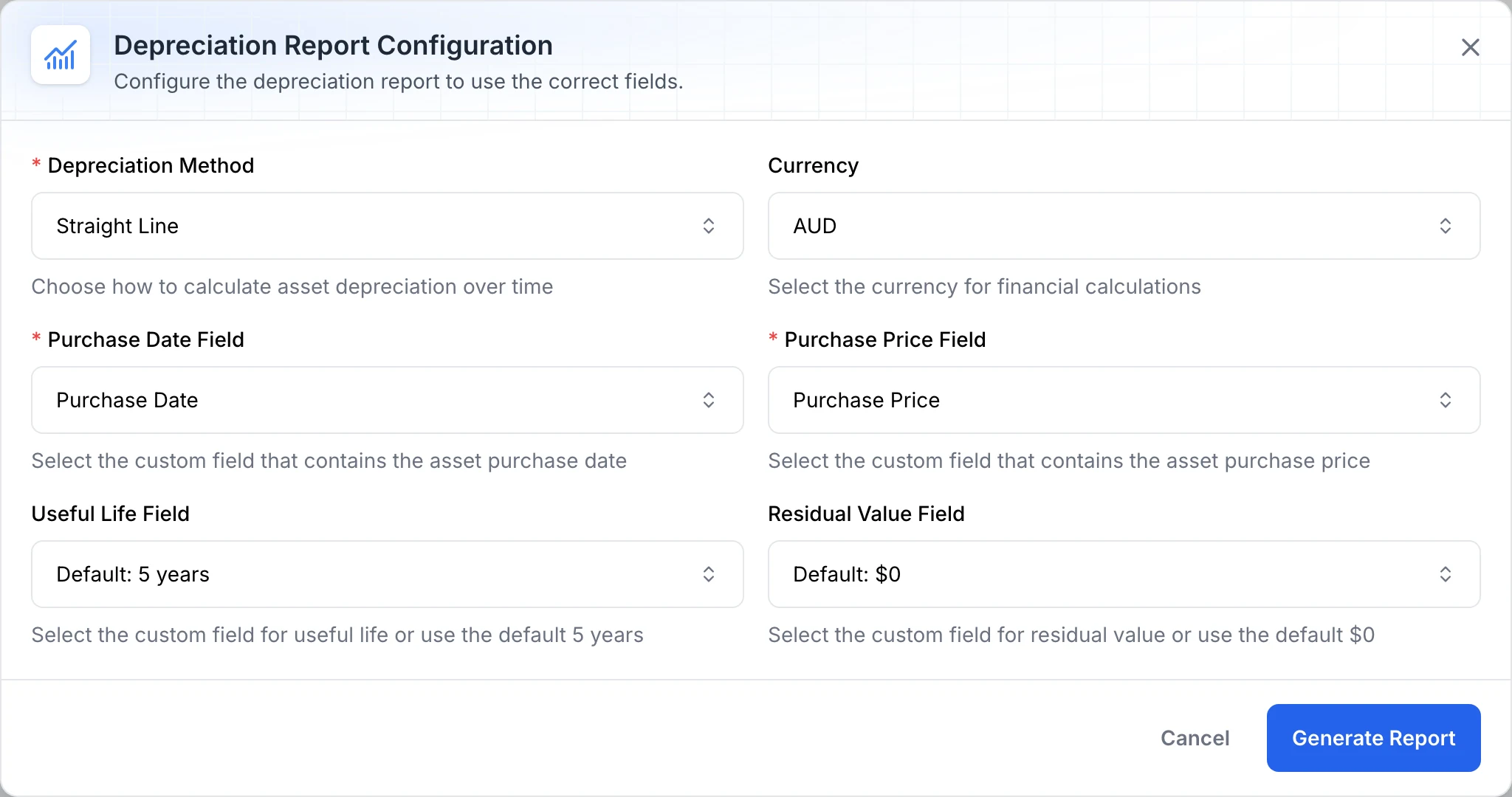
Map the purchase fields before running the report
The report uses the selected purchase fields, method and currency. Useful life and residual value can come from mapped fields or the displayed defaults.
MapTrack app · Demonstration data · Captured
About this screenshot
Demonstration configured with Straight Line, AUD, five years and zero residual value. Check the inputs your team intends to use before generating its report.
Choose the calculation settings
Set Currency and Depreciation Method. The method choices are Straight Line, Declining Balance and Sum of Years. This example uses Straight Line.
- Useful Life Field: choose a number field containing years, or Default: 5 years.
- Residual Value Field: choose a money field, or Default: $0.
- Currency: starts on the workspace currency. Change it if the purchase prices were recorded in another currency.
Generate the report and let it load
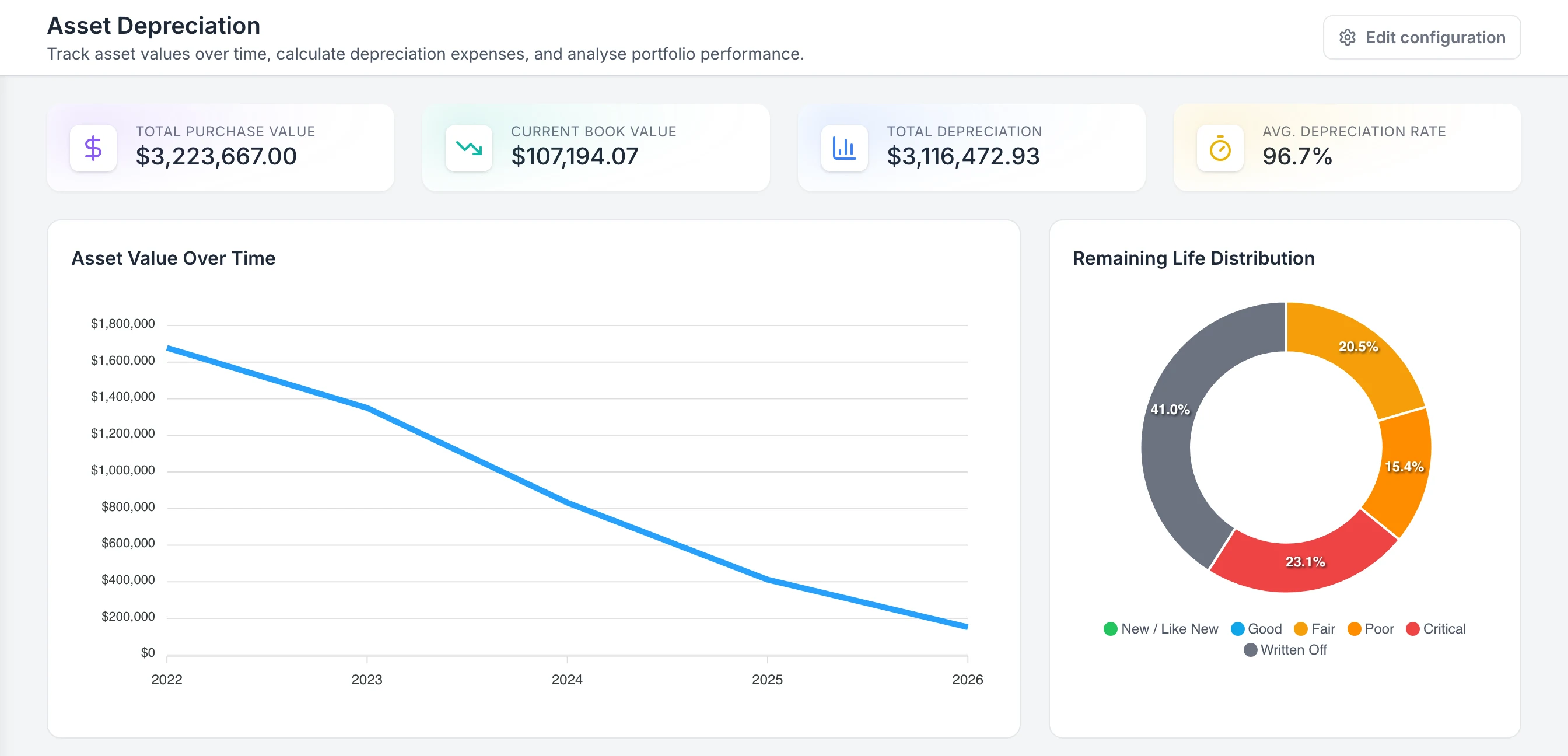
Choose Generate Report. Wait for the report and its configured address to finish loading. Review Total Purchase Value, Current Book Value, Total Depreciation and Avg. Depreciation Rate, then scroll to the asset table.
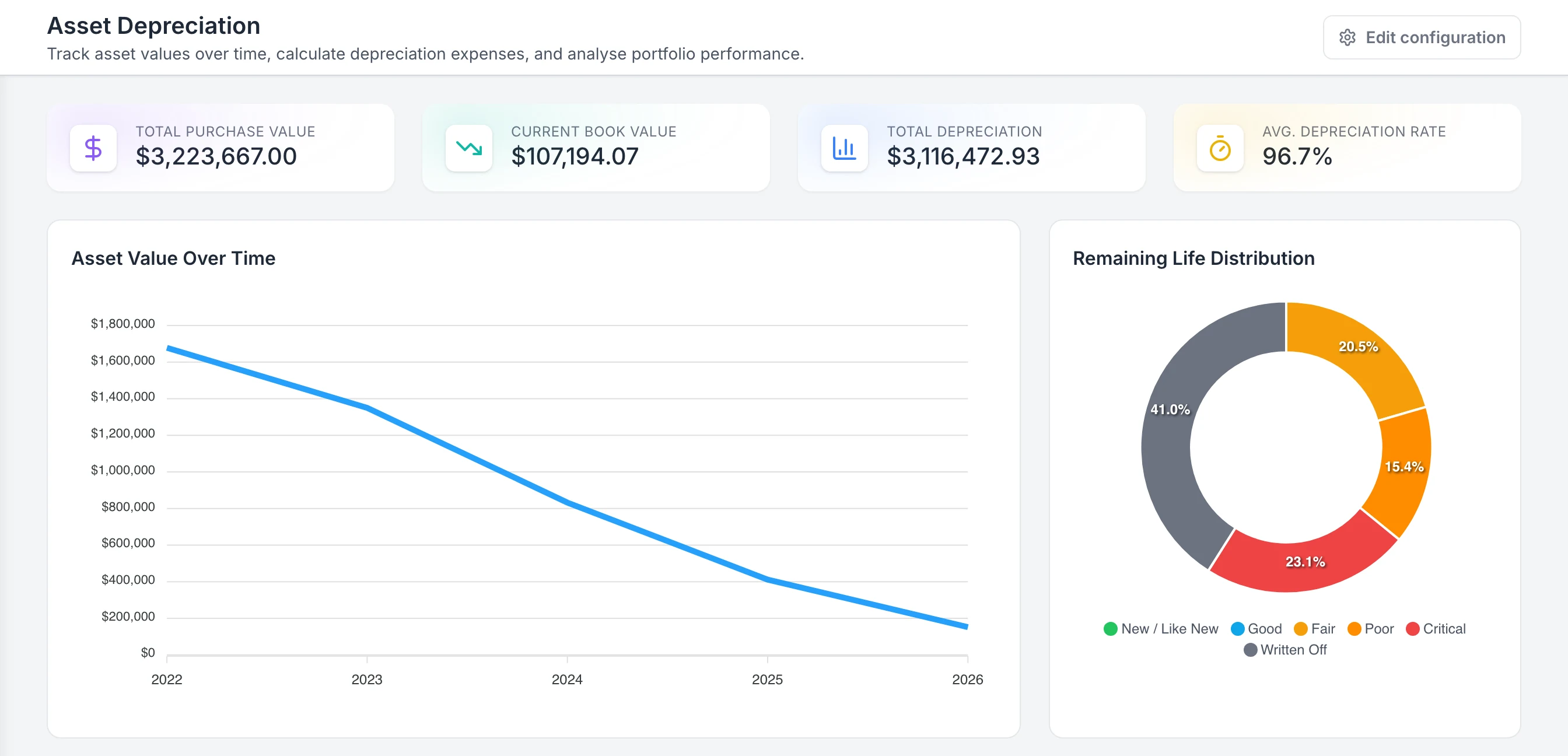
Read calculated values from the configured report
The summary shows calculated purchase value, book value and depreciation for assets with eligible source data. Remaining Life Distribution describes the calculation, not the equipment’s physical condition.
MapTrack app · Demonstration data · Captured
About this screenshot
Demonstration report using Straight Line, AUD, five-year useful life and zero residual value. These example values are not customer results or tax calculations.
Check one asset before using the totals
Find an asset whose purchase details you know. Check Purchase Date, Purchase Price, Useful Life (years) and Residual Value, then compare Current Book Value, Annual Depreciation and Accumulated Depreciation with the settings you selected.
Good to know: Remaining Life is calculated from the purchase date and useful life. It doesn’t measure the equipment’s physical condition.
Keep the configured view
Bookmark the report after it has loaded if you want to return to the same field mappings and method. The configured link carries these settings. Opening the bare Asset Depreciation page can ask you to configure it again.
What you should see
You have a depreciation view for assets with valid purchase information, using the selected currency, field mappings and calculation settings.
Current limits
- Assets need a valid purchase date that isn’t in the future and a purchase price above zero. Missing or invalid values can leave an asset out of the report.
- Currency selects matching purchase-price records; it doesn’t convert values between currencies.
- Avg. Depreciation Rate is accumulated depreciation as a share of total purchase value. It isn’t the annual depreciation percentage.
- Asset Value Over Time uses a year-based straight-line view. Use the asset table to review values for your selected method.
- Useful life and book value are calculated from recorded inputs. Keep your accounting and tax treatment in your accounting process.
Troubleshooting
| What you see | Likely cause | What to do |
|---|---|---|
| What you seeNo depreciation data found appears | Likely causeThe selected fields, currency or asset values may not provide valid purchase data. | What to doCheck one active asset. Confirm its date is valid and not in the future, its price is above zero, and the money field uses the selected currency. |
| What you seeThe purchase field isn’t offered in configuration | Likely causeIts field type may not match, or the custom field may be inactive. | What to doUse a date or date/time field for Purchase Date Field and a money field for Purchase Price Field. Check that the asset custom field is active. |
| What you seeReport not configured remains just after Generate Report | Likely causeThe new report view may still be loading. | What to doAllow the navigation to finish. Check that the address now includes your configuration. If it still hasn’t loaded, reopen Edit configuration and check both purchase fields. |
| What you seeThe table shows N/A for Residual Value | Likely causeThe zero residual value may be displayed as N/A in that table cell. | What to doCheck Edit configuration. Default: $0 uses zero in the calculation; confirm that’s the setting you intended. |
Common questions
Still stuck?
Tell us the step you reached, what you expected and the exact message on screen. Remove customer, asset and personal details before sharing a screenshot.