

Before you start
- Applies to
- MapTrack web app
- Access
- A signed-in member of the workspace. You can manage your own email choices; you don’t need the Admin role.
- Connection
- Internet connection required to load and change notification settings.
- Time
- 2 to 3 minutes
You'll need
- Access to the workspace where you want to change your emails
- An idea of which reminders and updates you need
Steps
Open your personal notification settings
Open the workspace menu at the bottom of the navigation and choose Notification settings. Check that you’re in the workspace you want to change.
Good to know: The choices apply only to you. They don’t change your crew’s settings.
Choose the type of email
Select Tasks, Maintenance, Audits, Assignments or Requests. Read each email’s description before changing it. The number beside a category shows how many of its email choices are on.
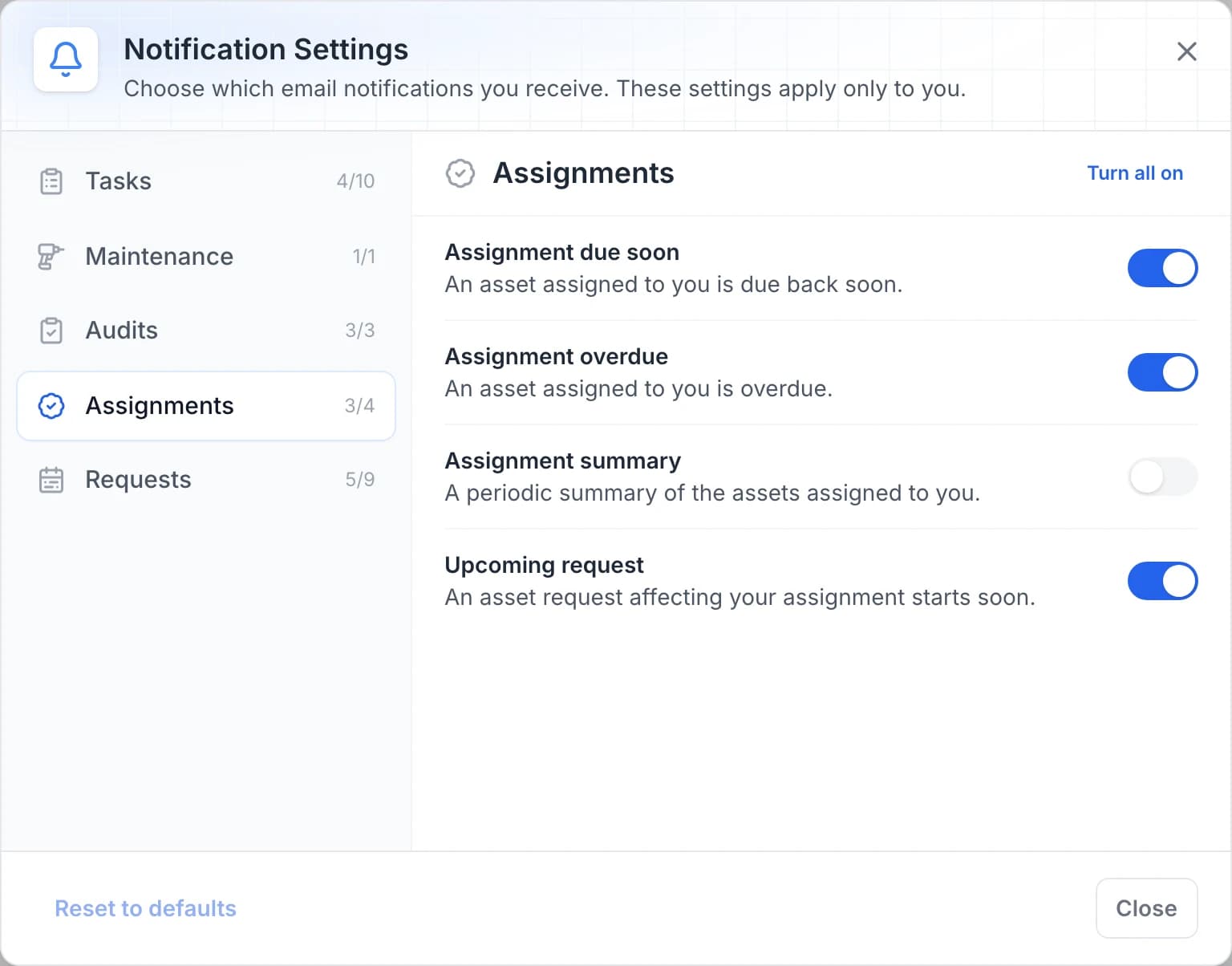
Choose the assignment emails you need
Each switch controls one of your email preferences. Assignment summary is off in this example, while the due-soon, overdue and upcoming-request emails are on.
MapTrack app · Demonstration data · Captured
About this screenshot
Demonstration personal settings. Category counts and defaults can differ depending on your involvement in the work.
Turn individual emails on or off
Choose an email’s row to change its switch. Your choice saves immediately; there’s no Save button. Close the dialog and reopen it if you want to check the saved setting.
Change a whole category when needed
Use Turn all on or Turn all off to change every email choice in the selected category. Read the confirmation and choose Yes, turn on or Yes, turn off. Choose Cancel if you want to keep the current choices.
Good to know: Turning a category off can stop useful reminders as well as routine updates.
Restore defaults if you want to start again
Choose Reset to defaults, then Yes, reset to clear your personal choices across all five categories. Close and reopen the dialog to check the result. Reset is disabled when you already have no personal overrides.
Good to know: Assignment summary, Request submitted, Request cancelled, Request starting soon and Request completed default to off. You can turn them on if you need them.
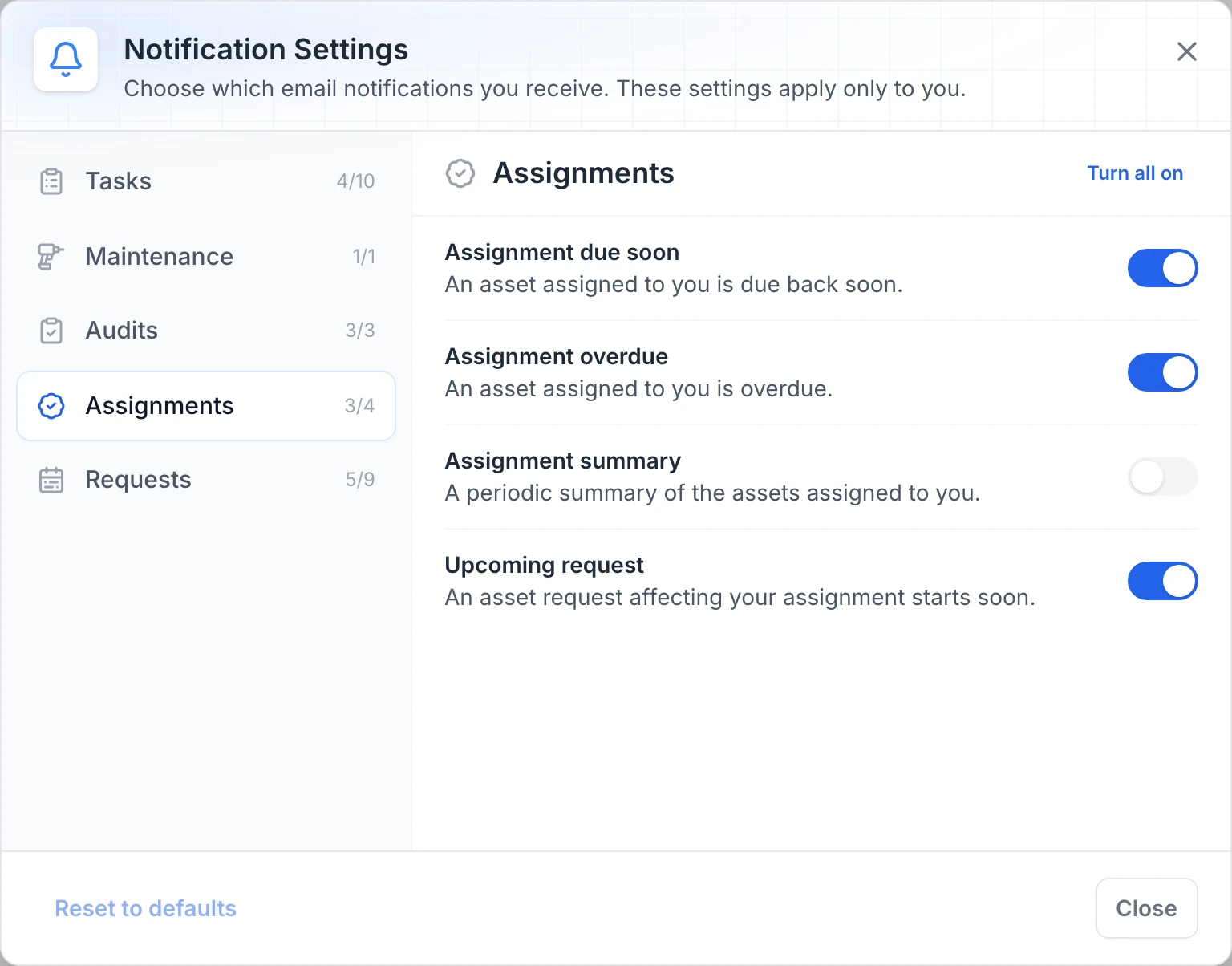
What you should see
Your selected emails are saved for you in the current workspace, and you can reopen the dialog to check them.
Current limits
- An enabled email still needs a relevant event and recipient. Turning it on doesn’t send a test email.
- Task defaults depend on your involvement as an assignee, reviewer or watcher. Another person’s defaults can differ.
- Your explicit choices stay in place until you change them or reset to defaults.
- These settings control the app’s listed email notifications. MapTrack Telematics alerts and automation notification actions are managed separately.
Troubleshooting
| What you see | Likely cause | What to do |
|---|---|---|
| What you seeReset to defaults is disabled | Likely causeYou don’t have any personal overrides to clear. | What to doReview the current switches. To change one email, choose its row; you don’t need to reset first. |
| What you seeA switch changes back or an error appears | Likely causeThe setting couldn’t be saved, often because the connection was interrupted. | What to doReconnect and reopen Notification settings. Check the current switch before trying again. |
| What you seeAn email is on but hasn’t arrived | Likely causeThe event may not have occurred, or you may not be its intended recipient. | What to doCheck the email’s description and your involvement in the task, audit, assignment or request. Check your junk folder too. Contact support if the relevant event occurred and you still haven’t received it. |
Common questions
Still stuck?
Tell us the step you reached, what you expected and the exact message on screen. Remove customer, asset and personal details before sharing a screenshot.