

Before you start
- Applies to
- MapTrack web app
- Access
- Account access to the asset, its maintenance history and the linked evidence; available records depend on your permissions
- Connection
- Use an internet connection to review the saved record and open its linked evidence
- Time
- 5 to 10 minutes for one service
You'll need
- An asset with a recorded service
- Access to any linked work order, forms or files you need to review
Steps
Open the service on the correct asset
Open the asset’s Maintenance tab and choose the relevant service record. Check the service date, outcome and service level so you are reading the right job.
Read the saved service values
Read the values shown on the service. If Service details appears, open it for the available basis and cost information. A reading captured during the service belongs to that earlier work; compare it with the current meter and schedule separately.
Open the asset’s supporting evidence
Review the service note, any attachments and Completed forms. When both scopes are present, This asset marks the individual asset’s form and Task marks the shared form. Open each form to read its answers.
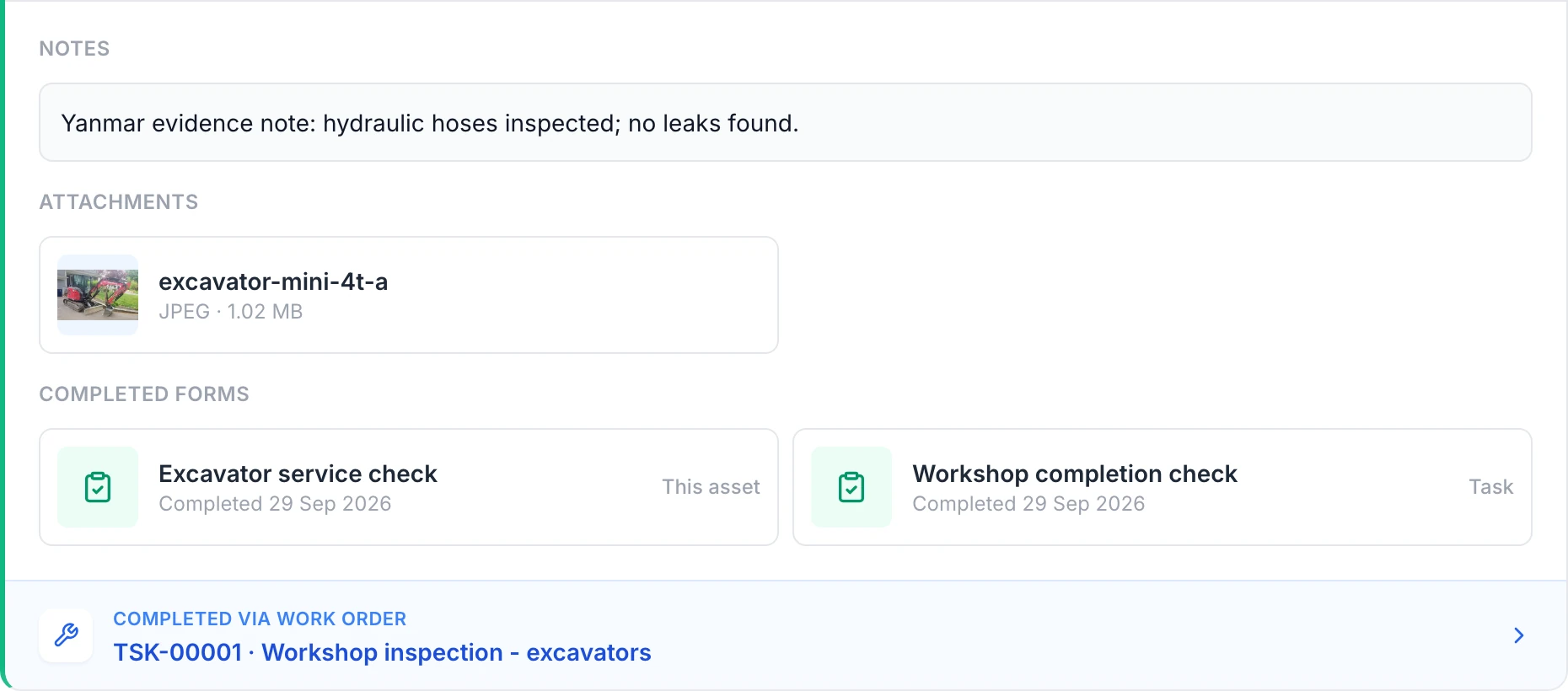
Read the first asset’s evidence
The Yanmar history shows its own note, photo and asset form. The Workshop completion check is shared task evidence. Both forms can be opened from this service record.
MapTrack app · Demonstration data · Captured
About this screenshot
Completed demonstration work order covering two excavators. This asset’s history and both linked form answers were reopened and checked independently.
Separate asset evidence from shared task evidence
A form labelled Task belongs to the shared job. On a job covering several assets, open each asset’s history separately. In this example, the two excavators have different asset notes and forms, while both histories link to the same Workshop completion check.
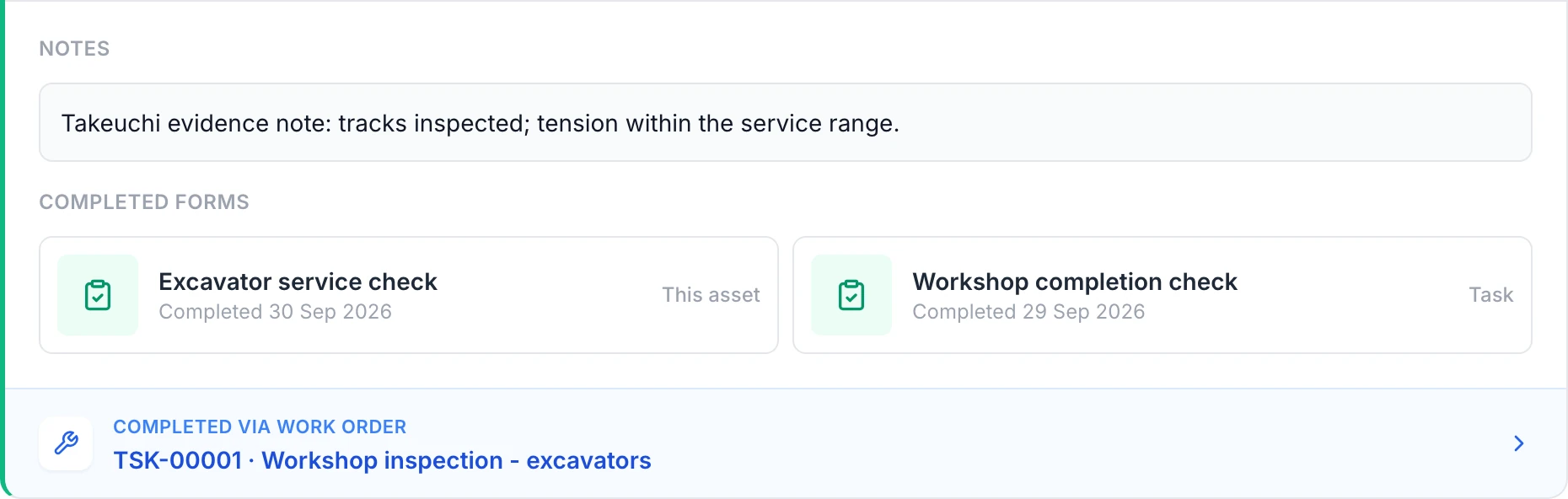
Check the second asset separately
The Takeuchi history has its own track-tension note and asset form. It shows the same shared Workshop completion check as the Yanmar. No photo was attached to this asset in the demonstration.
MapTrack app · Demonstration data · Captured
About this screenshot
The second asset was reopened separately after the same demonstration work order was completed. Its own form answer and the shared task answer were checked from this history.
Follow the work order and check what is due next
If the service has a work-order link, open it to review the wider job, including its procedure, time and costs where recorded. Return to the current schedule or Service Board to check the next service. An older record alone does not show whether the current cycle changed.
What you should see
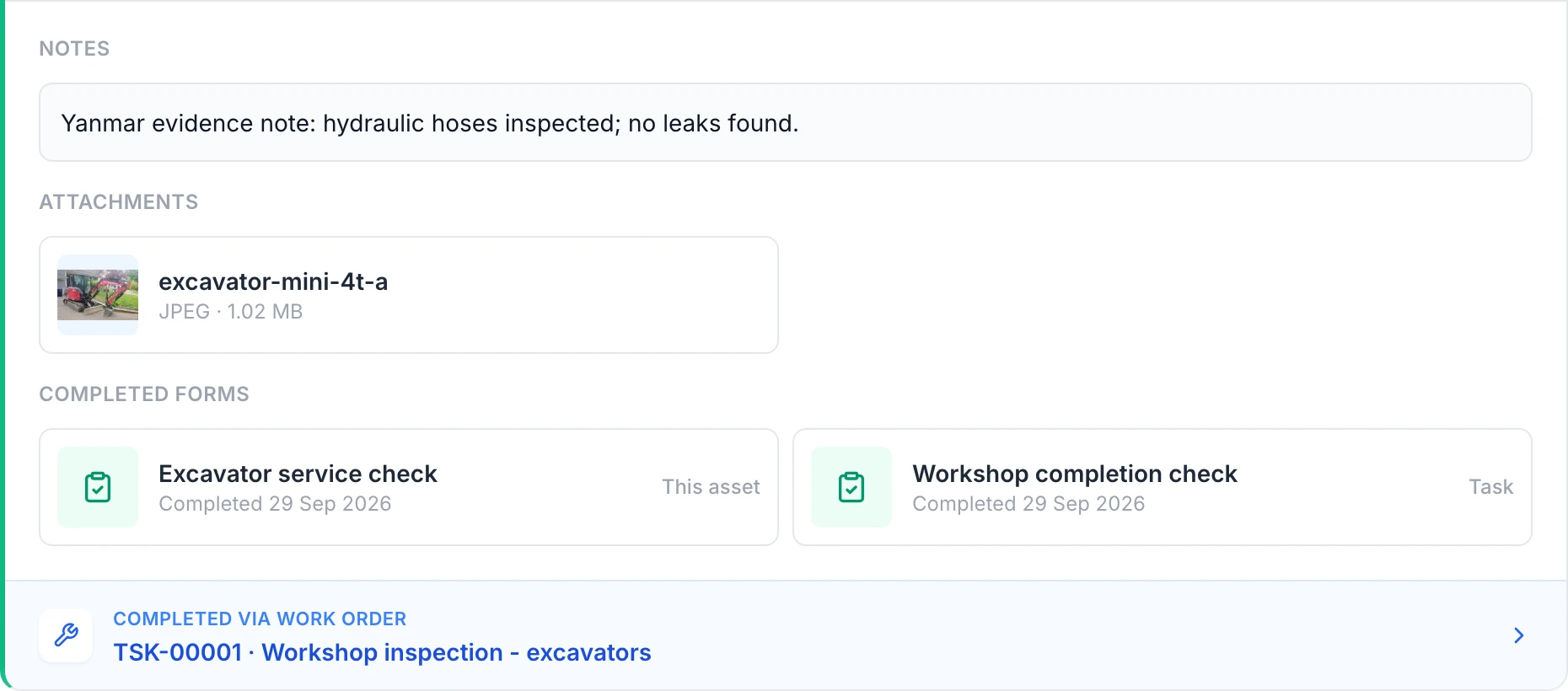
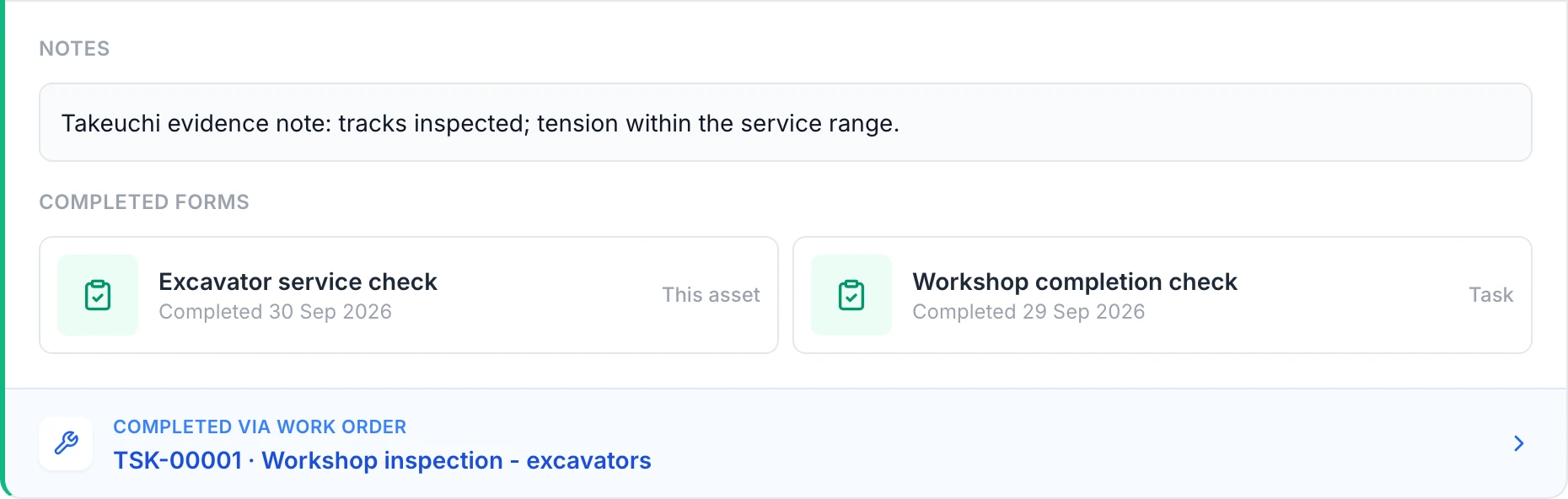
You can trace the saved service to its available notes, files and form answers, with individual asset evidence distinguished from the shared task form.
Current limits
- The record shows available evidence. A missing section does not prove whether work was done or whether more evidence exists elsewhere. Check the source record and your access.
- A shared task form is one job-level submission shown from the relevant asset histories. It is not a separate inspection completed for each asset.
- Historical records can be added without changing the current service cycle. Check the next-due option when recording older work.
Troubleshooting
| What you see | Likely cause | What to do |
|---|---|---|
| What you seeA form or attachment section is missing | Likely causeEvidence may not have been recorded for this service, or the record or file may be unavailable to your role. | What to doCheck any linked work order and ask an administrator or the person who recorded the work to confirm the evidence and access. |
| What you seeThe service reading differs from the current meter | Likely causeThe saved reading belongs to the time the service was recorded. | What to doRead the value shown on the service, or open Service details when available. Compare it with the current meter and schedule, keeping the historical reading in context. |
| What you seeThe same form appears in two asset histories | Likely causeIt may be the shared form labelled Task. | What to doCheck the label and open the form. Review the separate This asset form and notes for each asset before drawing conclusions. |
Common questions
Still stuck?
Tell us the step you reached, what you expected and the exact message on screen. Remove customer, asset and personal details before sharing a screenshot.