

Before you start
- Applies to
- MapTrack web app
- Access
- Permission to create tasks
- Connection
- Internet connection required to record the service
- Time
- A few minutes per batch, plus time to check each record
You'll need
- The assets already exist in the register
- A preventive schedule with the assets enrolled, for scheduled service
- Each asset’s reading at service, for a meter-based schedule
Steps
Select the assets you serviced
On the Assets list, tick each asset you serviced, then open the selection menu and choose Record service.
Choose what you are servicing
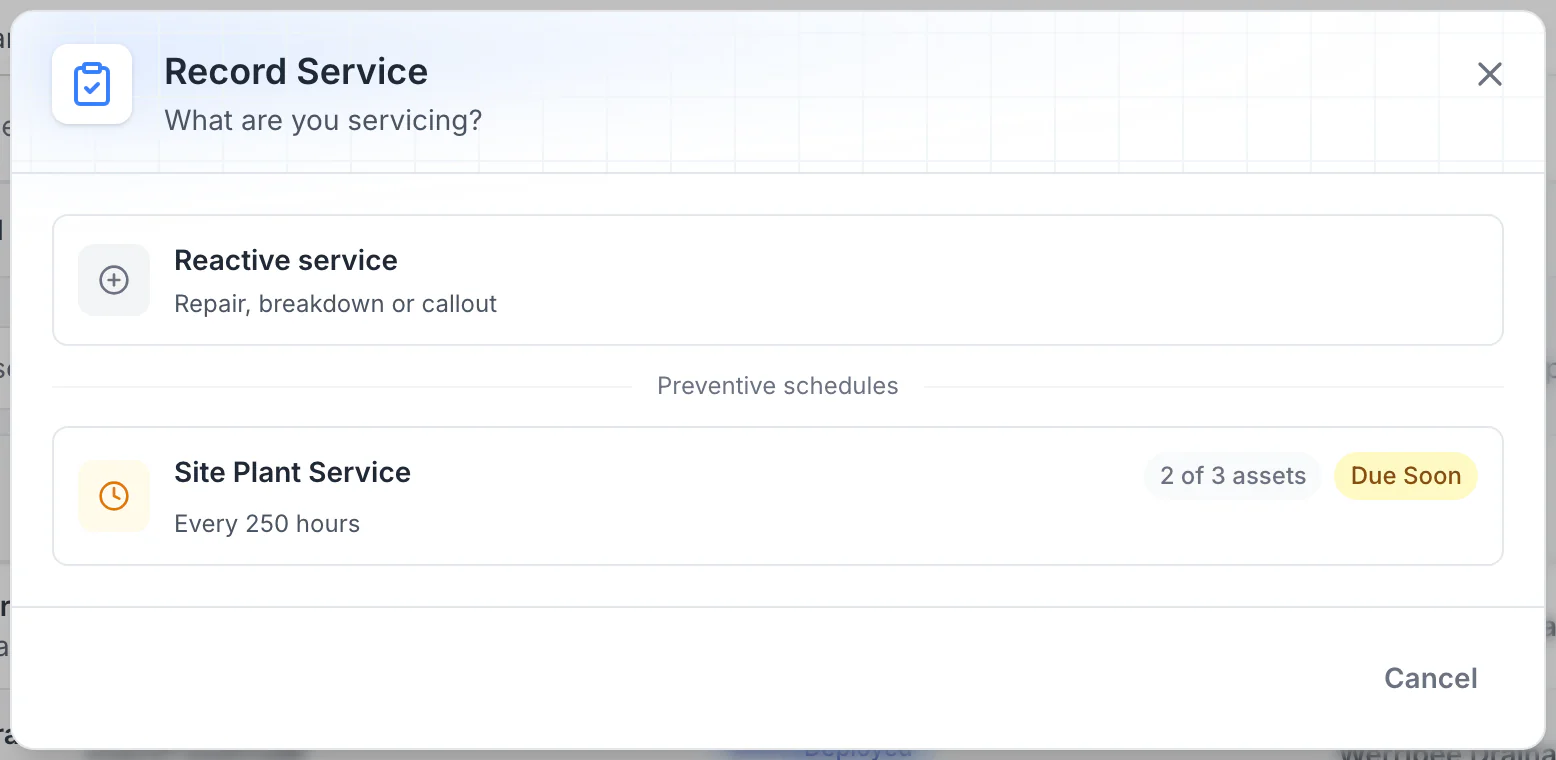
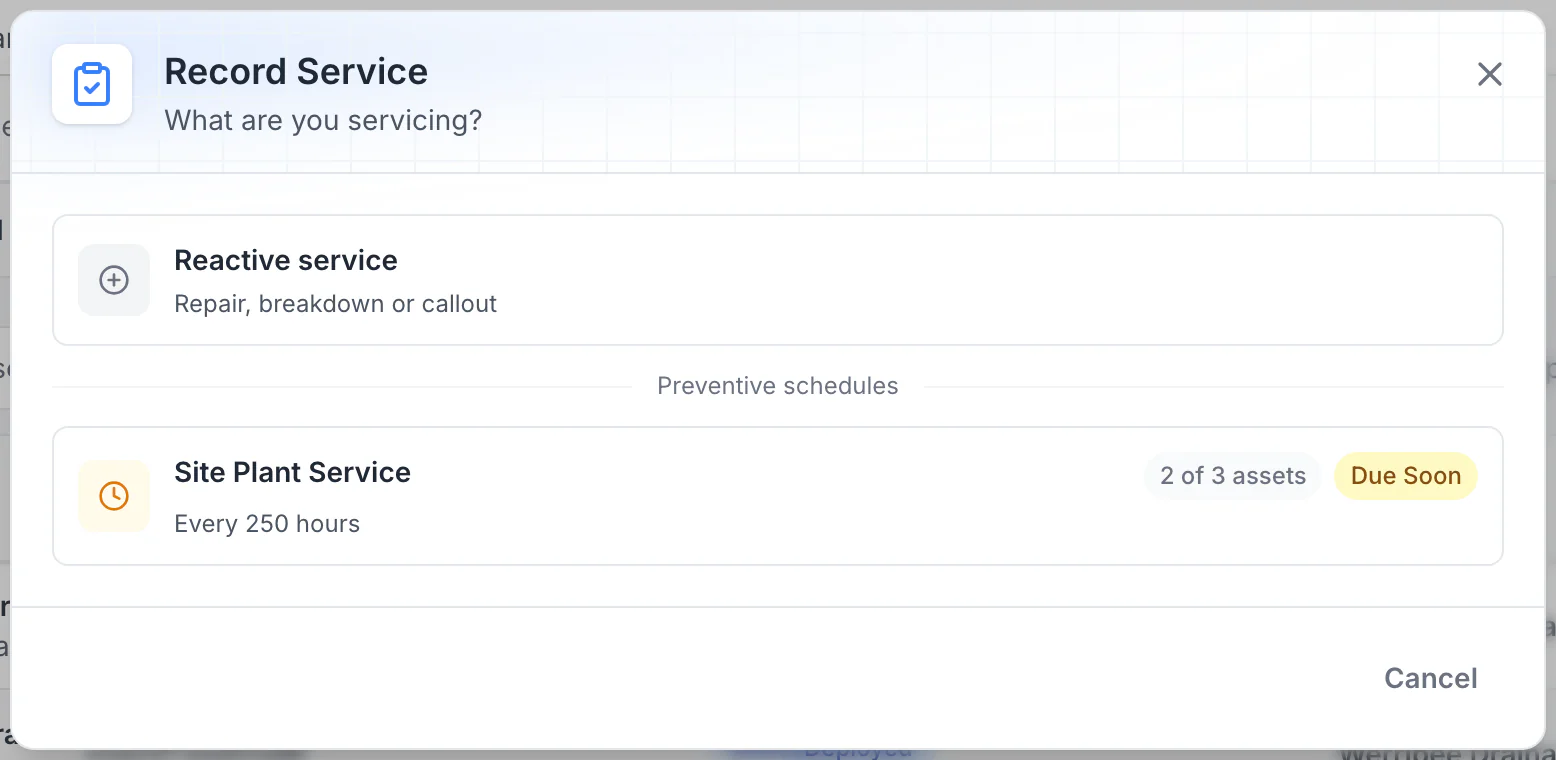
Choose Reactive service for a repair, breakdown or callout, or pick a preventive schedule. Each schedule shows how many of the selected assets are on it, such as 2 of 3 assets.
See which selected assets a schedule covers
Three assets were selected at Werribee Drainage: a 20 kVA generator, an LED lighting tower and a 3-inch trash pump. Only the generator and the lighting tower are enrolled in Site Plant Service, so the schedule shows 2 of 3 assets. Choosing it records the service for those two only.
MapTrack app · Demonstration data · Captured
About this screenshot
Demonstration workspace. Three assets selected on the Assets table, then Record service from the selection menu. Captured before anything was saved.
Good to know: If the schedule shows View followed by a work order number, open it and finish the work there. Otherwise, continue to the next screen.
Say the work is done
Choose The work is already done. For a preventive plan with several services, choose the service you completed. Reactive service adds a history entry without resetting a preventive schedule. If an open work order blocks this option, complete or cancel that work order first. To plan work instead, raise a work order from this screen.
Enter each asset’s reading
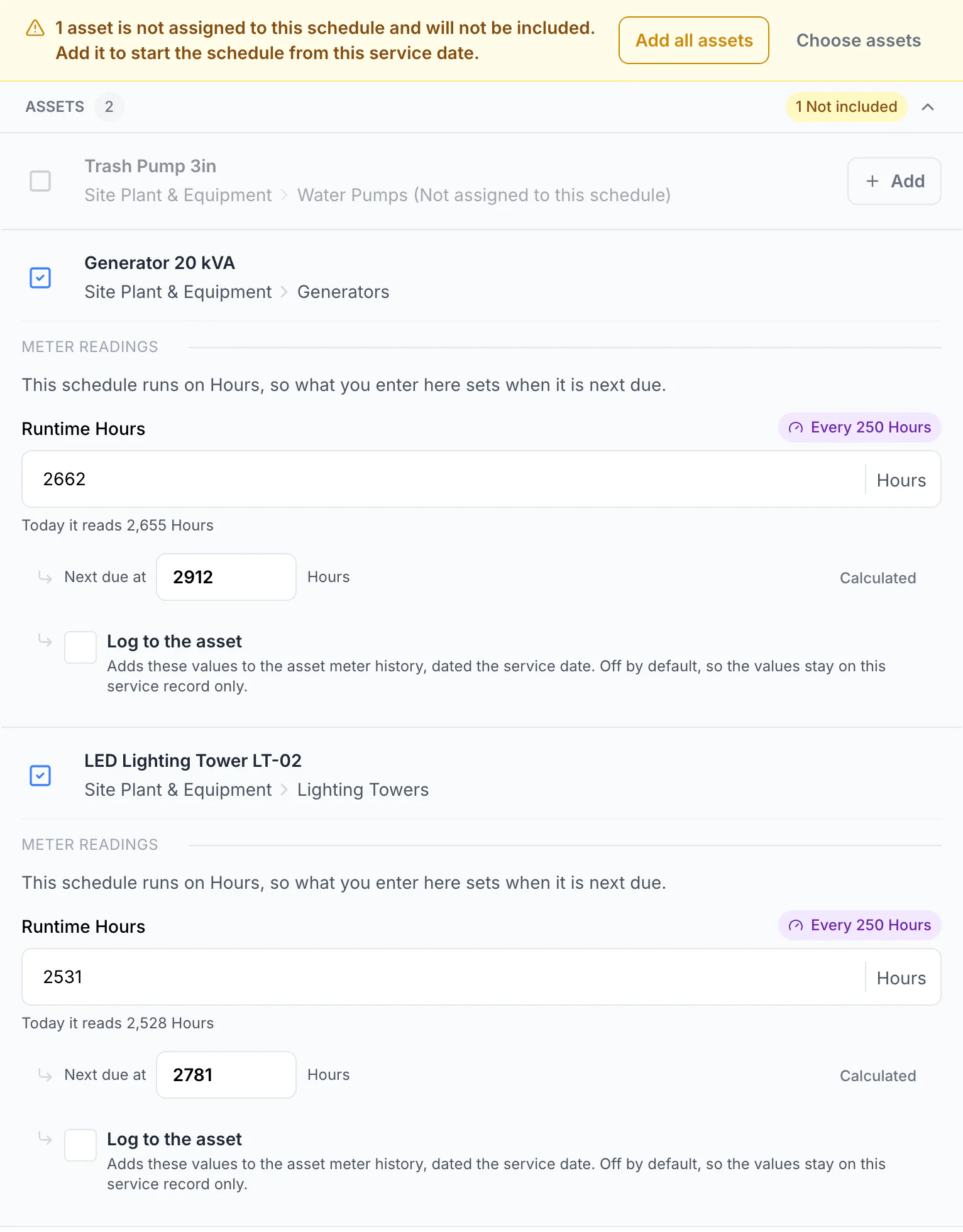
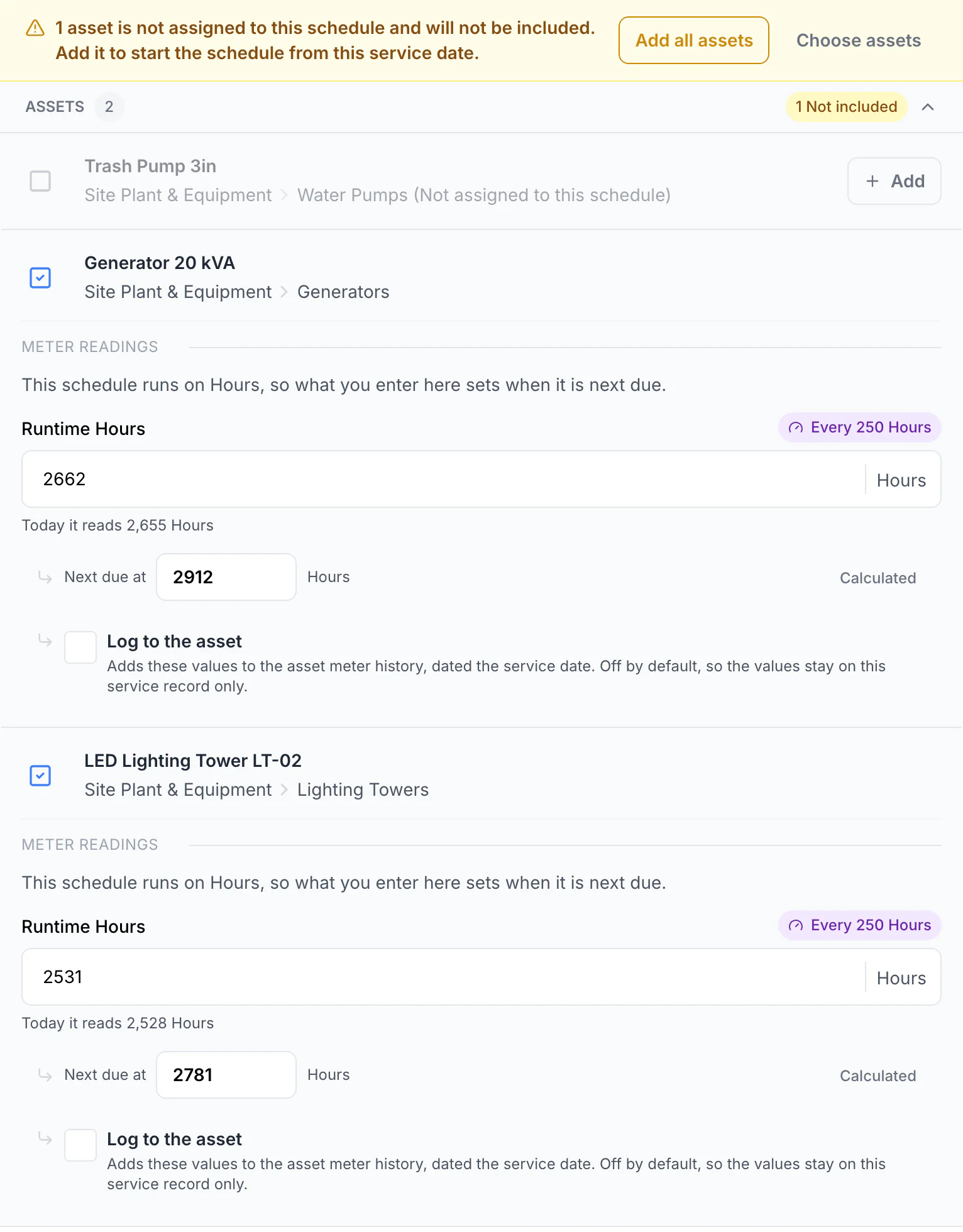
Open the assets list in the form. For a meter-based schedule, type each asset’s reading at service and MapTrack works out that asset’s next due point. The reading stays on the service record unless you tick Log to the asset, which adds it to the asset’s meter history.
Enter each asset’s own reading
The schedule runs every 250 hours, so each reading sets that asset’s next due point: 2,662 hours gives 2,912 and 2,531 gives 2,781. The values stay on the service record unless Log to the asset is ticked, which adds them to the asset’s meter history. The trash pump is not on this schedule, so it is left out unless you add it.
MapTrack app · Demonstration data · Captured
About this screenshot
Demonstration workspace. The Log Service step for the two enrolled assets with readings typed in, before saving; the capture starts at the assets panel.
Good to know: Selected assets that are not on the schedule are listed as not included. Leave them out, or use Add to start their schedule from this service date.
Add shared details and save
Check the service date and outcome. For assets already on the preventive schedule, check whether to update the next due point; backdated entries default to history only. Assets you add start their schedule from this service date. Use Add notes, costs or attachments for anything shared by the batch, then choose Log service once.
Check each asset’s history
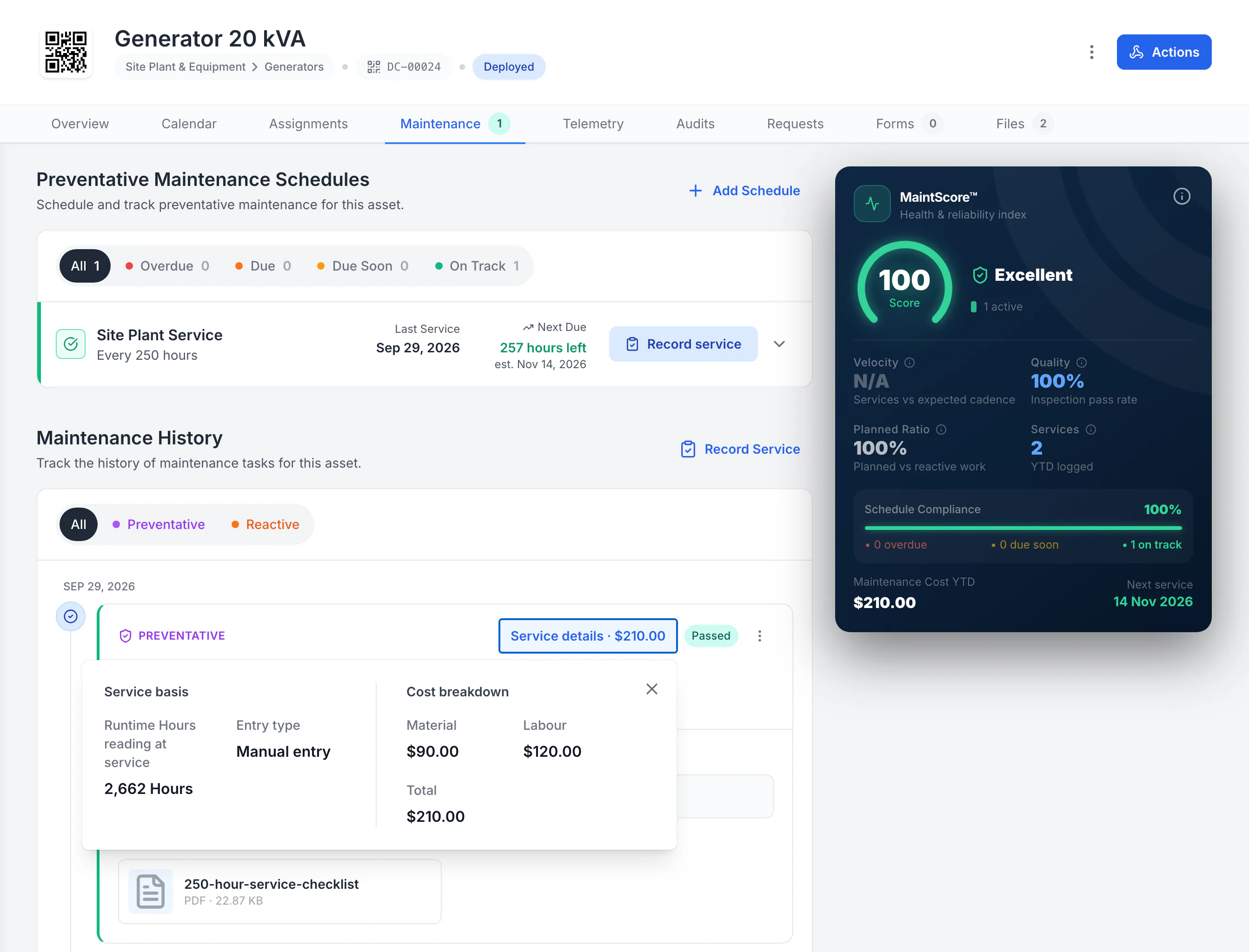
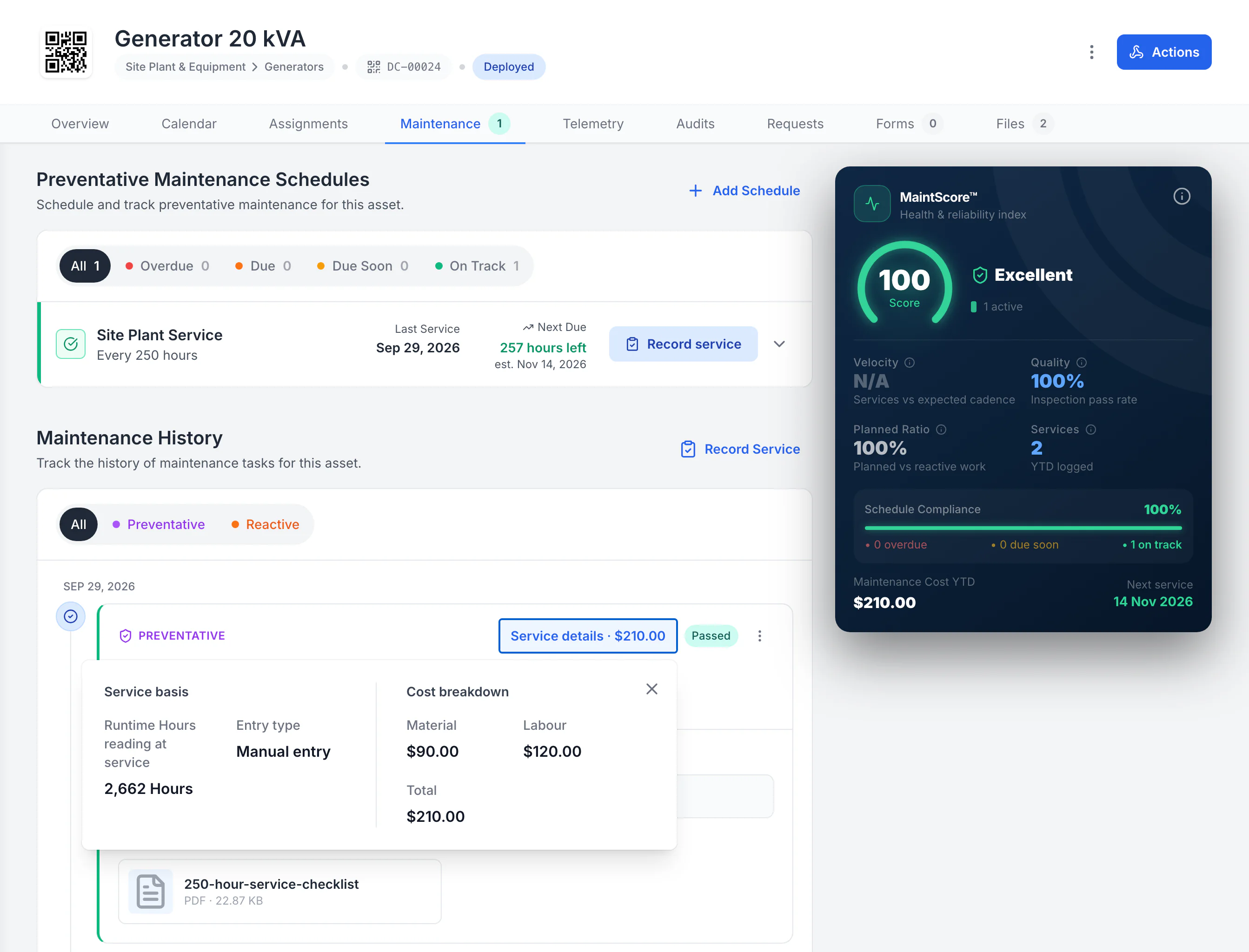
Open each included asset’s Maintenance tab. Check the new entry’s outcome, the reading under Service details, its share of the costs and the next due point.
Open each asset’s saved service
One save covered two assets, and each asset has its own history entry. The generator keeps its own reading at service, 2,662 hours, and half of the $180 material and $240 labour entered, with the checklist attached. The lighting tower shows the same split with its own reading of 2,531 hours, and the trash pump has no new record.
MapTrack app · Demonstration data · Captured
About this screenshot
Demonstration workspace. One Record service save for a generator and a lighting tower, then each asset’s Maintenance tab opened separately. Service details is open over the new entry.
What you should see
Each included asset has its own entry with its reading, an even share of the costs and the attachments. For assets already on the preventive schedule, the next due point changes when you choose to update it; backdated entries default to history only. Assets you add start their schedule from this service date. Assets you left out have no new entry.
Current limits
- Shared costs are split evenly across the included assets, and attachments are added to each asset’s entry. Use separate batches when the costs differ.
- A preventive schedule records service only for the selected assets enrolled in it.
- Recording a service needs a connection and permission to create tasks.
Troubleshooting
| What you see | Likely cause | What to do |
|---|---|---|
| What you seeThe schedule shows fewer assets than you selected | Likely causeOnly some of the selected assets are enrolled in that schedule | What to doRecord the others against their own schedule or as reactive service, or add them to this schedule from the form. |
| What you seeThe schedule opens a work order, or The work is already done is unavailable | Likely causeAn open work order covers all the assets for that service, or overlaps part of the selected batch | What to doOpen the existing work order from Work Orders & Tasks and complete or cancel it before logging the service. Check which assets it covers before changing the batch. |
| What you seeThe save did not finish | Likely causeThe connection dropped or the save failed partway | What to doKeep the form open and read the message. If it has closed, check each asset’s history before recording the service again. |
Common questions
Still stuck?
Tell us the step you reached, what you expected and the exact message on screen. Remove customer, asset and personal details before sharing a screenshot.