

Before you start
- Applies to
- MapTrack web app
- Access
- Admin to view completion reporting. Access to individual submissions also follows your account role and the form’s submission-visibility settings.
- Connection
- Internet connection required for reporting, saved submission history and exports. Forms completed offline must sync before they appear here.
- Time
- 5 to 10 minutes for one week or form
You'll need
- Saved form submissions in the workspace
- The form, person or reporting week you want to review
- Access to the completed forms and any supporting photos or files
Steps
Open Weekly Completion
Open Forms > Reporting. Check the week shown above Weekly Completion and choose All, Asset, Location or Person to narrow the form type.

Choose the week and the type of form
Choose a week and use All, Asset, Location or Person to focus the view. The summary counts submissions and participating users; it does not establish that every required inspection was completed.
MapTrack app · Demonstration data · Captured
About this screenshot
Demonstration weekly summary. The individual user rows are outside this crop.
Choose the week and visible users
Use Previous week or Next week to move between the current week and the four previous weeks. Open the three-dot menu for Show inactive users and Show weekends. By default, users without submissions and weekend columns are hidden.
Read participation and Rate correctly
The heading and each person’s Rate answer different questions. Count the days and people before using either percentage to follow up with your crew.
- Participation: people with at least one submission during the selected week, divided by all account members.
- Rate: displayed days up to and including today on which that person submitted at least one form, divided by displayed days up to today.
- Several submissions on one day still count as one completed day for that person’s Rate.
Good to know: These figures show submission activity. They don’t compare each person with a schedule of required inspections.
Open the completed forms behind a day
Select a completed day to open Submissions. Choose a submission and check its form, subject, submitter and recorded time. Read the answers and any attached evidence before deciding what needs follow-up.
Review one form’s submission history
Return to All forms and open the form you need. Choose Submissions to see its saved records. Use Search for submissions or the date filter, then open View details on the relevant record. This is also the place to look beyond the reporting overview’s five-week window.
Export the submissions you need
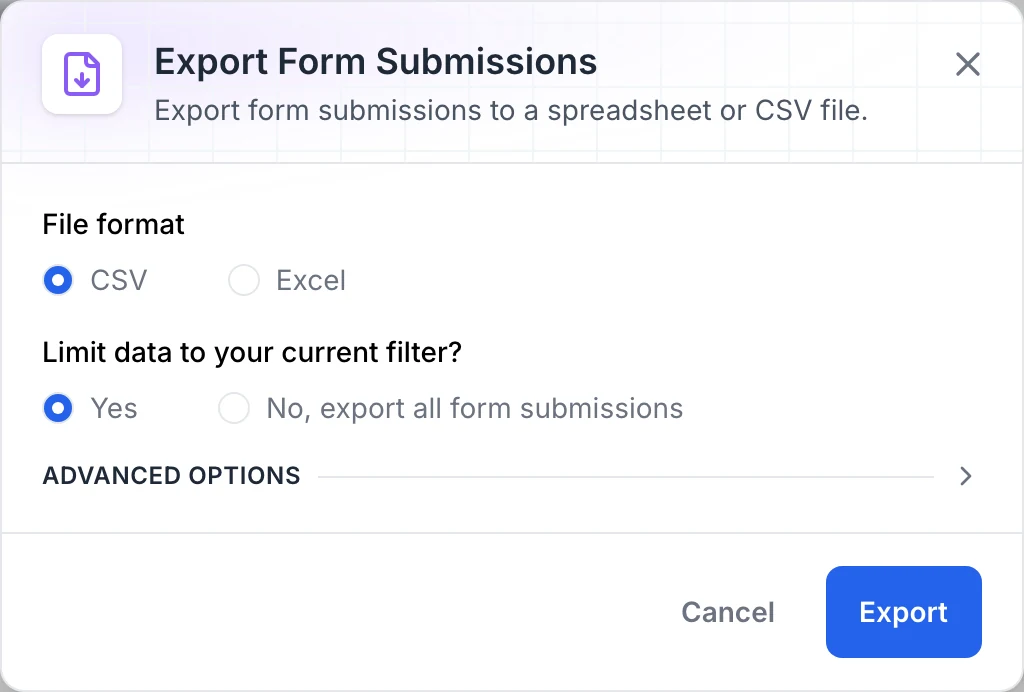
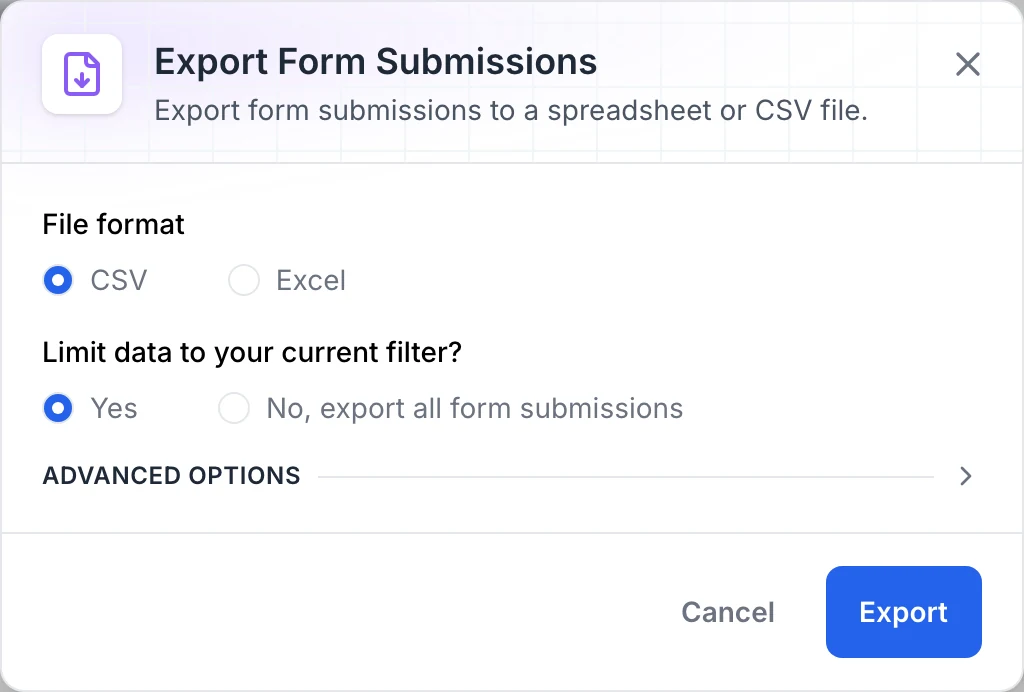
On the form’s Submissions tab, choose Export. In Export Form Submissions, choose CSV or Excel. Under Limit data to your current filter?, choose Yes to retain the list filters or No, export all form submissions. Choose Export, then open the downloaded file and check the form and dates.
Keep the export to the selected submissions
Choose CSV or Excel, then select Yes to keep the export to the current filter. No, export all form submissions includes the form’s full submission history instead.
MapTrack app · Demonstration data · Captured
About this screenshot
Export settings for a demonstration pre-start form. The saved file should be checked for the expected records, fields and dates before it is shared.

What you should see
You can explain the week’s submission activity, open the completed forms behind it and export the selected form’s submission data for review.
Current limits
- A completed day means at least one recorded submission. It doesn’t establish that every required pre start or inspection was completed.
- Showing or hiding inactive users changes the visible rows, not the account-member denominator in the participation heading.
- An individual form’s overview uses submission count divided by account members times the displayed week’s days for its completion-rate heading. That differs from each person’s Rate and can exceed 100% when there are multiple submissions.
- Offline submissions appear in saved reporting after they sync. A missing record can also reflect your filters or access.
- The spreadsheet export contains submission data. A completed form’s PDF is a separate document; the reporting overview isn’t a general PDF report builder.
Troubleshooting
| What you see | Likely cause | What to do |
|---|---|---|
| What you seeReporting shows No form completions | Likely causeThe selected week or form type may exclude the submissions, or there may be no synced submissions in that period. | What to doCheck the week and choose All. Open the form’s Submissions tab and clear its filters to find a known record. Confirm any offline submissions have synced. |
| What you seeA team member is missing from the weekly view | Likely causeInactive users are hidden by default. | What to doOpen the three-dot menu and choose Show inactive users. Then check the selected week and form type. |
| What you seeParticipation is 100% but a person’s Rate is lower | Likely causeEveryone may have submitted at least once this week, without submitting on every elapsed day. | What to doRead the heading as a share of people and Rate as a share of displayed elapsed days. Open the completed days to see the actual submissions. |
| What you seeThe export includes more records than expected | Likely causeNo, export all form submissions may have been selected. | What to doApply the intended date or search filter on the Submissions tab, reopen Export and choose Yes under Limit data to your current filter?. |
Common questions
Still stuck?
Tell us the step you reached, what you expected and the exact message on screen. Remove customer, asset and personal details before sharing a screenshot.