

Before you start
- Applies to
- MapTrack web app, Maintenance schedules and Service Board
- Access
- An account member with permission to create and update maintenance; recording service also needs permission to create tasks
- Connection
- Internet connection required for schedule setup, the Service Board and Record Service
- Time
- Allow time to review each service procedure and test the plan
You'll need
- The service intervals and tasks specified for your equipment
- An existing meter, such as runtime hours, if you use a meter trigger
- The procedure forms and parts you want to attach to each service
- One suitable test asset with a checked current reading and previous-service starting point
Steps
Create the schedule and first trigger
Go to Maintenance > Schedules and choose Create Schedule. Give the plan a useful name. Choose Meter-based for an interval such as every 250 runtime hours, select the meter and save the schedule. For a calendar interval, choose Time-based.
Good to know: The intervals in this guide are examples, not instructions for servicing a particular machine.
Add the other service levels
Open the Services tab. Choose Add another service; the new service opens for editing. Use the pencil beside its name to give it a useful label, such as 500-hour service. That label follows the service into work orders and history. Add a trigger for that service and save the changes. Repeat for the remaining levels. For this example, use 250, 500 and 1,000-hour intervals on the same meter.
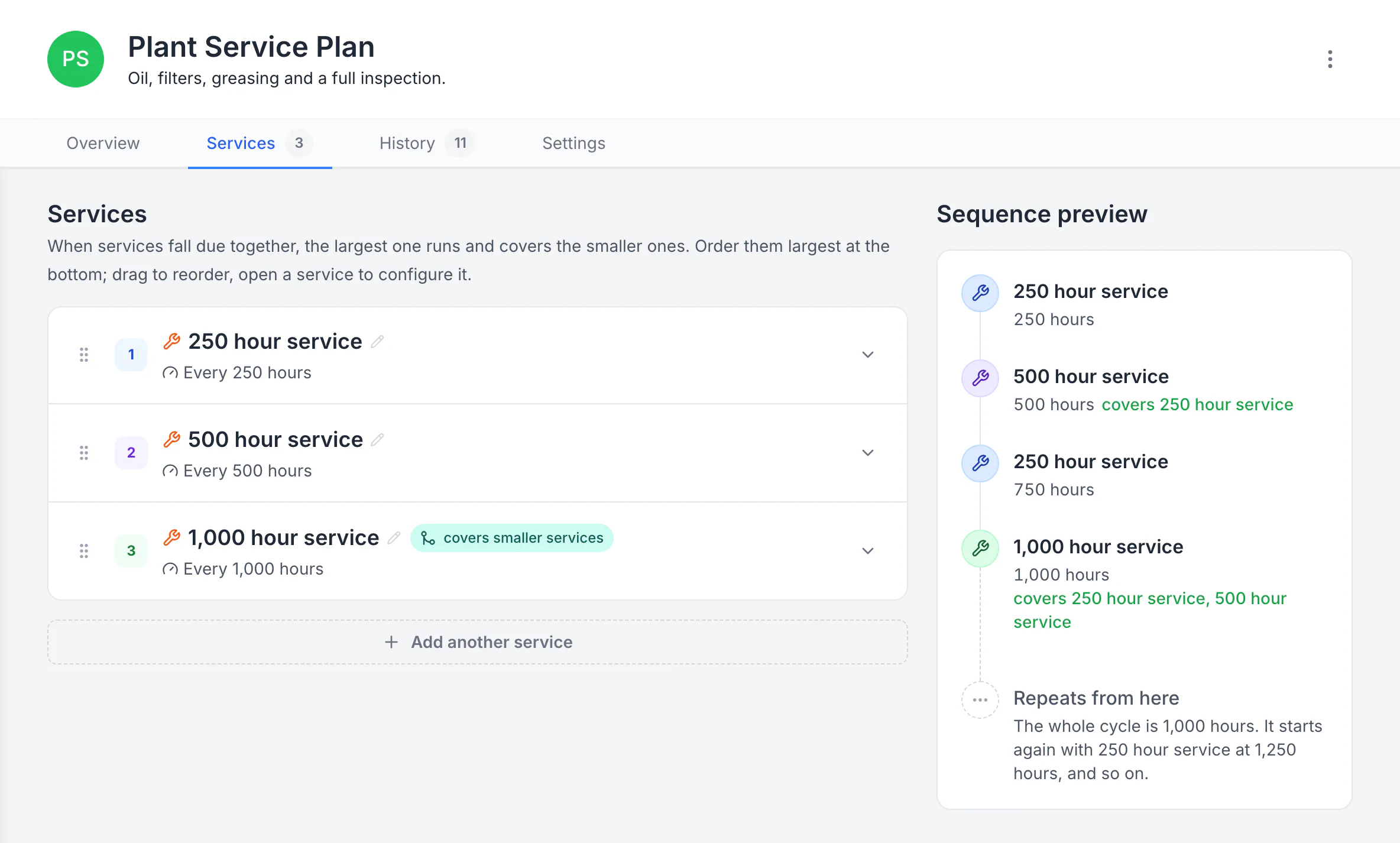
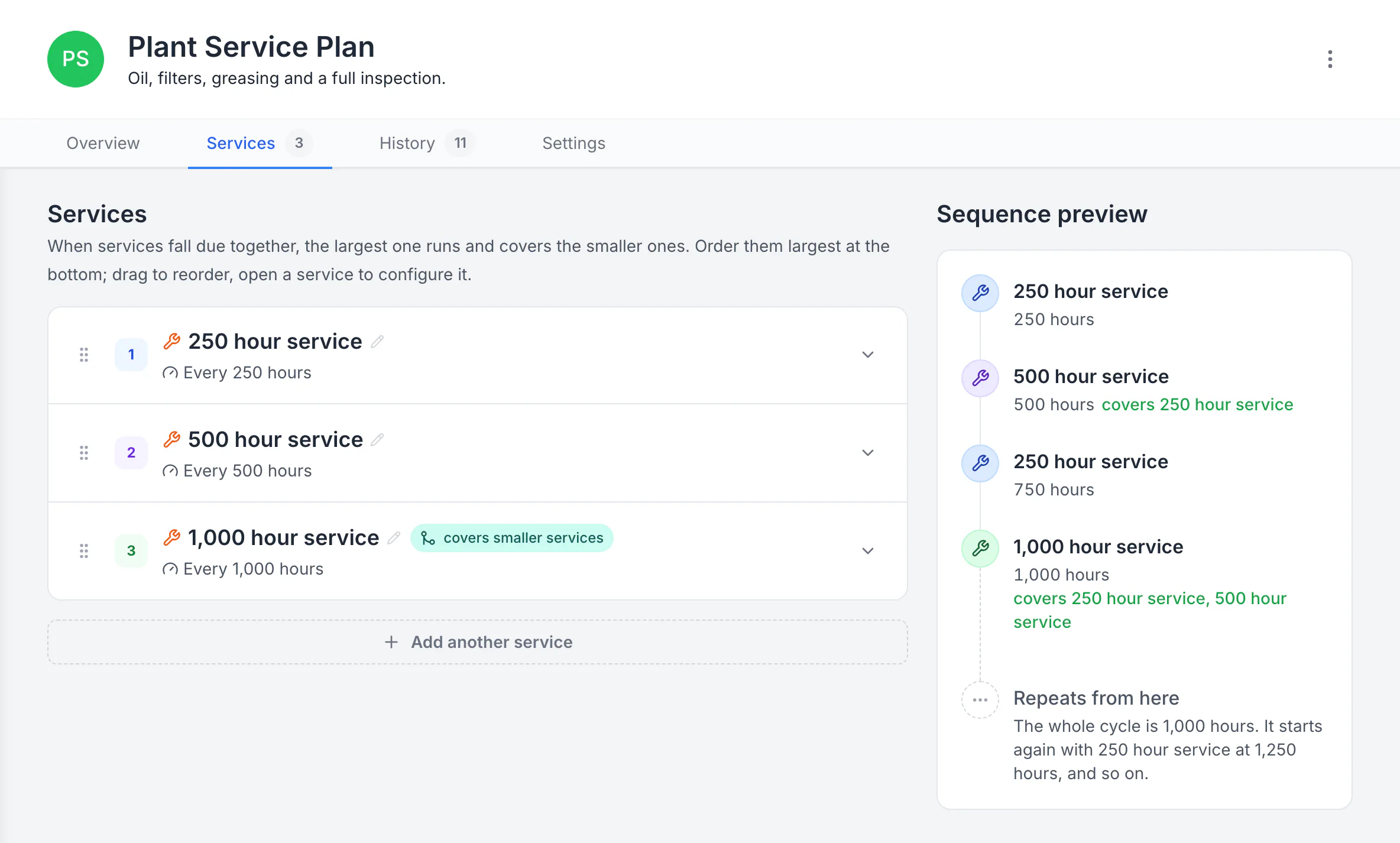
Build a plan with separate service levels
The plan runs a 250-hour service, a 500-hour service that covers it, and a 1,000-hour service that covers both. The sequence preview shows the whole 1,000-hour cycle and where it starts again.
MapTrack app · Demonstration data · Captured
About this screenshot
Demonstration plan. Each level carries its own triggers, procedure, parts and work-order defaults. Follow your equipment manufacturer’s service intervals.
Order the services and check the preview
Put the smaller service first and the largest last. The highest-ordered due service takes priority when several become due together. Check the Sequence preview against your intended plan. A service with no trigger will not run.
- Check that the 500-hour level covers the coinciding 250-hour service.
- Check that the 1,000-hour level covers the coinciding smaller services.
- If the preview explains that the sequence is unavailable, review the trigger types and intervals before enrolling assets.
Give every level its complete procedure and parts
Within each service, open Procedure and Parts. Add all checks and parts required for that level. Use Work order to set its defaults. A larger service uses its own definition; it does not automatically combine the procedures or parts from smaller services.
Good to know: For a major service that includes an oil change as well as extra work, include the oil-change checks and parts in the major-service definition too.
Choose the schedule settings
Open Settings and choose the work-order generation mode: manual, automatic per asset or automatic batch. Check the cadence setting. Roll from completion rolls the next interval from the completed service; fixed interval keeps the service boundaries anchored to the plan.
Good to know: A recorded meter reading can trigger automatic generation when its threshold and configured conditions are met. For a date-based service, MapTrack shows it due soon from 14 days out and emails the person assigned a week ahead; raise the work order from the schedule in a couple of clicks, for one asset or a whole batch, or test the supported rule you set. A service that requires both a meter and a time condition also needs manual handling or a supported rule you set.
Enrol a test asset and check the board
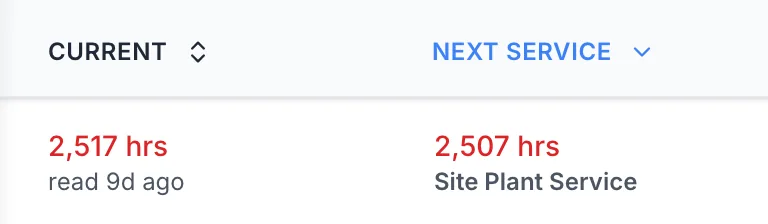
Return to Overview and choose Add Assets. Enrol one suitable asset, check its previous-service setup and current reading, then open the Service Board. Confirm that the next service and due point are what you expect before enrolling more assets. Each meter row shows how old its last reading is, such as read 8d ago; when that text turns amber or red, record a current reading before relying on the due point.
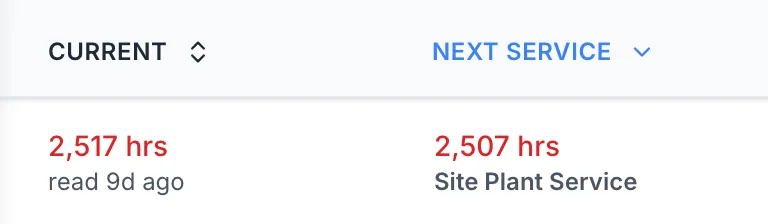
Check the age of the current reading.
The Current column shows each reading’s age beside the next service due point.
MapTrack app · Demonstration data · Captured
About this screenshot
Open the Service Board in the demonstration workspace and inspect the Current and Next Service columns for existing meter-based services.
Check a completed service and the next due point
Use the asset’s maintenance workflow to complete the linked work order or record work already done. Review the saved service record and the next due point. Record service-time readings carefully; a reading kept on the service record is separate from choosing to add it to the asset’s meter history.
Good to know: Backdated service recording defaults to history only. Choose to update next due only when you intend to change the current cycle.
What you should see
The schedule contains the intended service levels, each with its own trigger and work definition. Its preview matches the intended sequence, and the enrolled asset shows the expected next service. After a service is recorded, you can review its result and confirm the next due point.
Current limits
- Parts and procedures are taken from the selected service only. Smaller lists are not automatically combined.
- A smaller work order already open is not automatically merged into a larger service that becomes due later. Review open work before using the permitted skip workflow.
- Cadence anchoring is a schedule setting, rather than a separate setting for each service level.
- The sequence preview may show separate axes or an explanation for mixed time and meter triggers. Do not interpret one axis as a complete combined schedule.
- Maintenance configuration, the Service Board and Record Service require a connection. Recording a previously loaded work order’s results offline is a separate workflow.
Troubleshooting
| What you see | Likely cause | What to do |
|---|---|---|
| What you seeA service says it will not run. | Likely causeThat service has no saved trigger. | What to doExpand the service with its configure chevron, add a trigger and save the change. Recheck the sequence preview. |
| What you seeThe major job is missing a part or procedure. | Likely causeIt was only added to a smaller service. | What to doAdd the complete required list to the major service. Review an already-created job separately; do not assume editing the plan rewrites it. |
| What you seeTwo work orders are open for the same asset. | Likely causeA smaller service was raised before the larger service became due. | What to doReview both jobs and their service levels. They are not automatically merged; use the permitted skip workflow only after deciding how the work will be handled. |
| What you seeA historical service did not change next due. | Likely causeThe backdated record used the default history-only behaviour. | What to doCheck the service date and intended current cycle. Only choose to update next due when the historical record should change the live plan. |
Common questions
Still stuck?
Tell us the step you reached, what you expected and the exact message on screen. Remove customer, asset and personal details before sharing a screenshot.